
Help center
DokuAI help: every feature, step by step.
DokuAI is an app for iPhone and Android that turns photos and voice notes from a site visit into a finished PDF report. This page explains every function of the app with numbered steps, the prerequisites, tips and the mistakes that happen most often.
Updated: . The screenshots show DokuAI 3.1.1 on an iPhone.
Getting started
How do I set up DokuAI after installing it?
What you achieve
DokuAI can use the camera and the microphone, and the short introduction shows you the first report.
Before you start
- DokuAI installed from the App Store (iPhone, iPad) or Google Play (Android).
- About two minutes for the first start.
Step by step
-
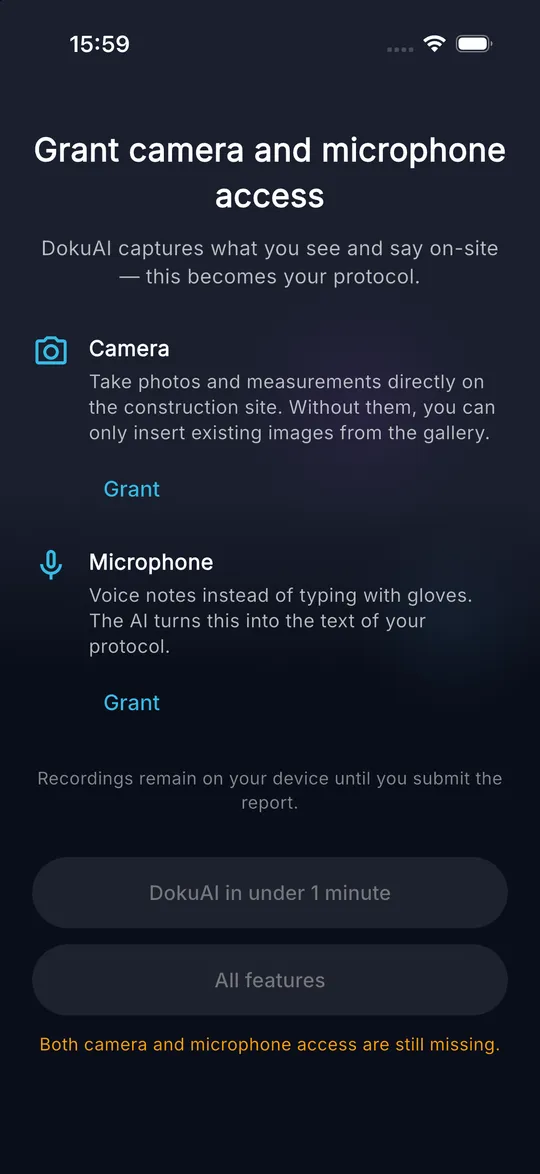
01 Open DokuAI. The screen Grant camera and microphone access appears.
-
02 Tap Grant under Camera and confirm the system dialog with Allow.
-
03 Tap Grant under Microphone and confirm again with Allow. Both cards now show Granted.
-
04 Choose the introduction: DokuAI in under 1 minute shows the first report and refining it, All features runs all six chapters.
-
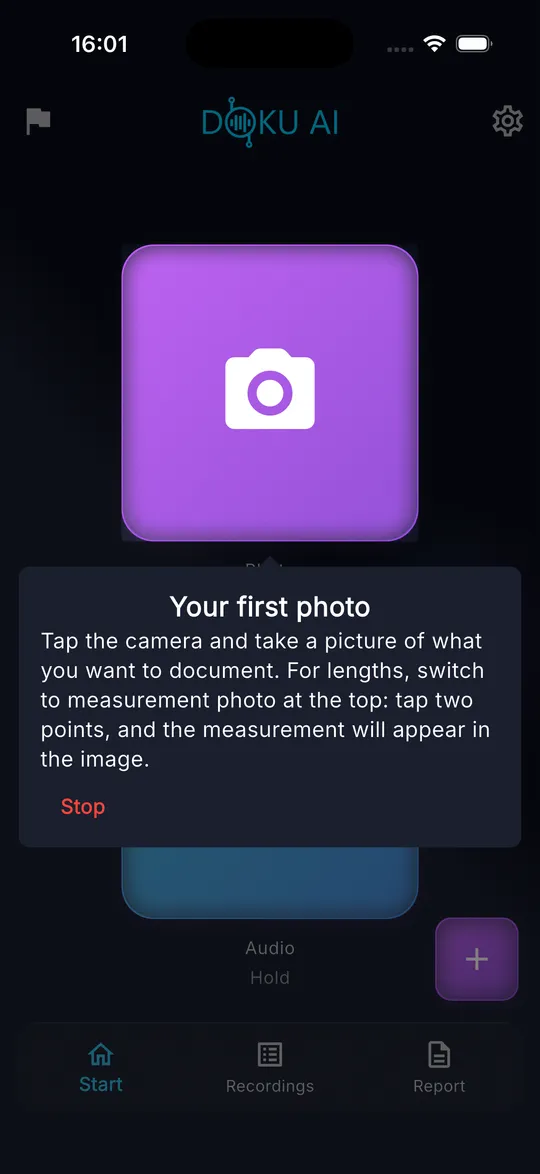
05 Follow the hints on the screen. Each hint points to the button you need next. Tap Stop to end the introduction at any time.
Tips
- Recordings stay on your device until you send a report.
- You can restart every chapter of the introduction later under Settings, Discover features.
Common mistakes
- The start buttons stay grey: one of the two permissions is still missing. The orange note below the buttons says which one.
- You denied a permission by mistake: the button then reads Grant in settings and opens the system settings of DokuAI.
Getting started
How do I restart the guided tour?
What you achieve
You repeat single chapters of the interactive introduction whenever you need them.
Before you start
- DokuAI is set up.
Step by step
-
01 Tap the gear icon at the top right of the Start screen to open Settings.
-
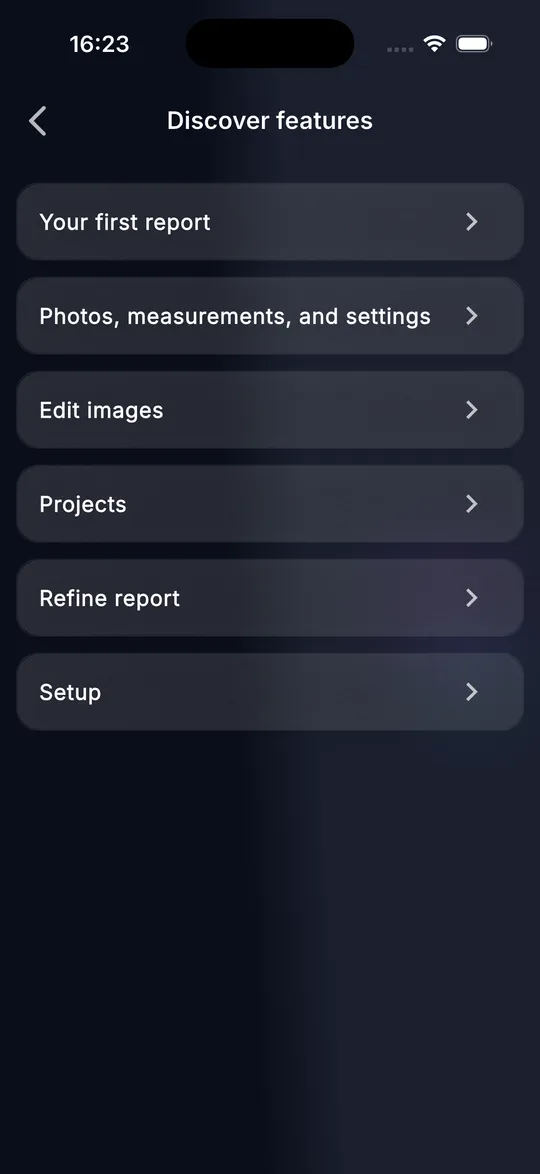
02 Tap Discover features in the App Settings section.
-
03 Choose a chapter: Your first report, Photos, measurements, and settings, Edit images, Projects, Refine report or Setup.
-
04 Follow the hints. The chapter about the first report waits for your real actions, for example a photo or a voice note.
Tips
- Chapters you have already seen are marked as seen in the list.
- If the app closes during a chapter, DokuAI asks on the next start whether you want to continue.
Common mistakes
- A hint disappears after you tap next to it. It returns after a few seconds so that you do not lose your place.
Capture
How do I choose the language of the report?
What you achieve
The AI writes the report in the language your client needs, independent of the language of the app.
Before you start
- DokuAI is open on the Start screen.
Step by step
-
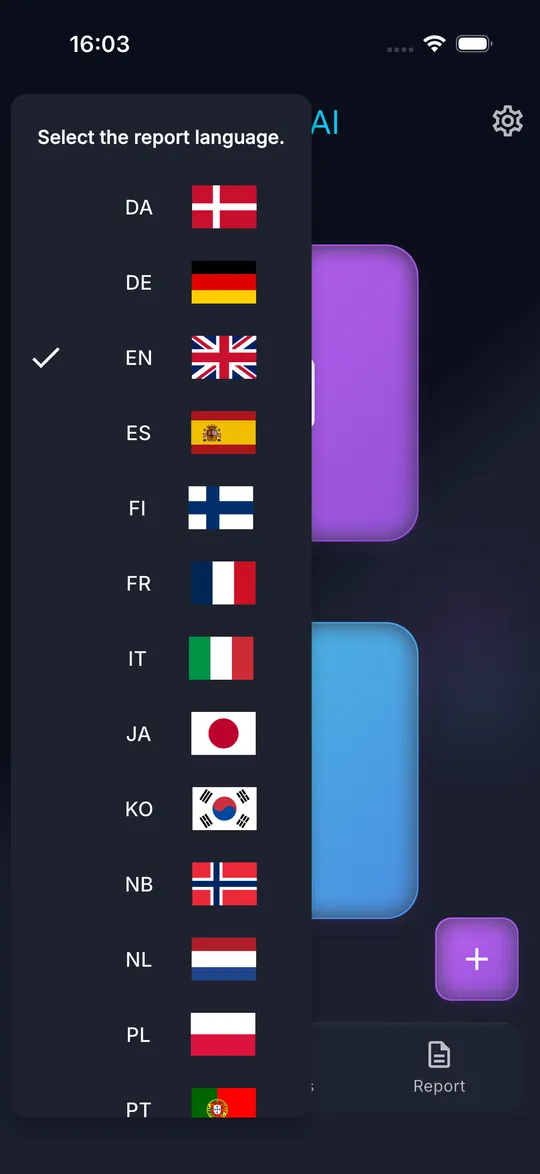
01 Tap the flag icon at the top left of the Start screen.
-
02 The list Select the report language. opens with 15 languages. The current language has a check mark.
-
03 Tap the language of the report. The next report you send is written in this language.
Tips
- The app itself follows the language of your phone. The report language is a separate setting.
- You can dictate in one language and receive the report in another, for example dictate in German and get the report in English.
Common mistakes
- The report arrives in the wrong language: the report language is set when you send. Choose the language before you tap Send.
Capture
How do I take a photo for the report?
What you achieve
Every damage, every room and every detail ends up as a photo in your report.
Before you start
- Camera permission granted.
- Fewer than 150 images in the current report.
Step by step
-
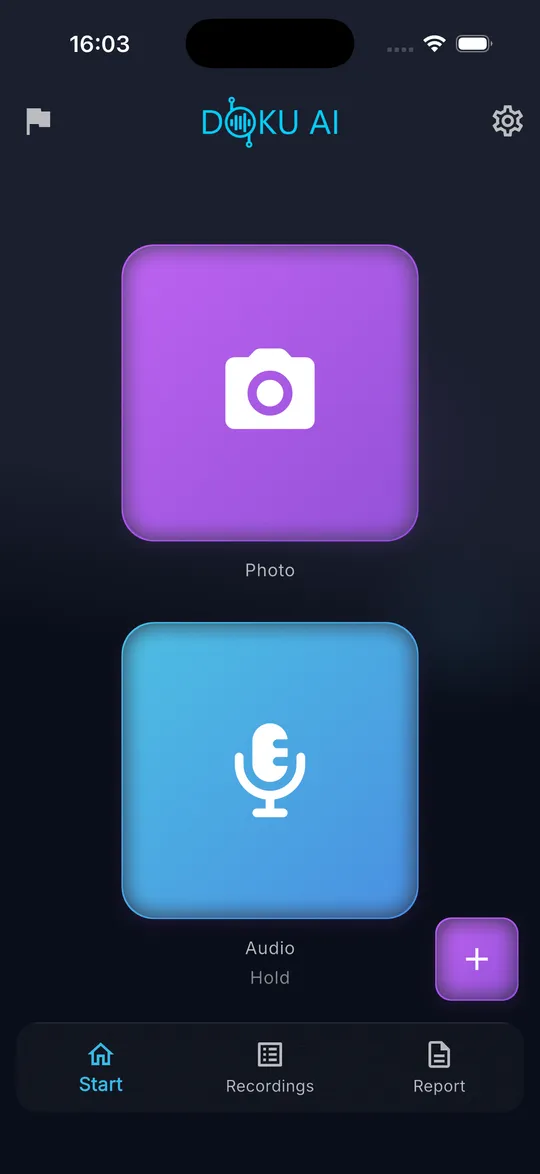
01 On the Start screen, tap the large purple tile Photo.
-
02 The camera opens. Make sure the mode at the top is set to Photo.
-
03 Aim at the subject. Use the slider on the right edge or two fingers to zoom between 1x and 5x.
-
04 Tap the round shutter button at the bottom.
-
05 Check the preview and tap Keep. With Measure again you go back to the camera.
Tips
- Take one overview photo of each room first, then the details.
- The photo is stored with date, time and location of the site visit.
- On Android, phones without Google Play Services for AR open the normal system camera.
Common mistakes
- The camera does not open and a limit message appears: the report already contains 150 images. Send the report or delete images first.
- From 140 images on, DokuAI tells you how many images you can still add.
Capture
How do I measure a length in the photo with AR?
What you achieve
The length of a crack, a gap or a hole is drawn into the photo as a measurement line with a value.
Before you start
- iPhone or iPad with ARKit, or an Android phone with Google Play Services for AR.
- Enough light and a surface with visible structure.
Step by step
-
01 Tap Photo on the Start screen and switch the mode at the top to Measurement Photo.
-
02 Move the device slightly back and forth until the hint asks for the first point.
-
03 Aim the crosshair at the start of the length and tap the plus button.
-
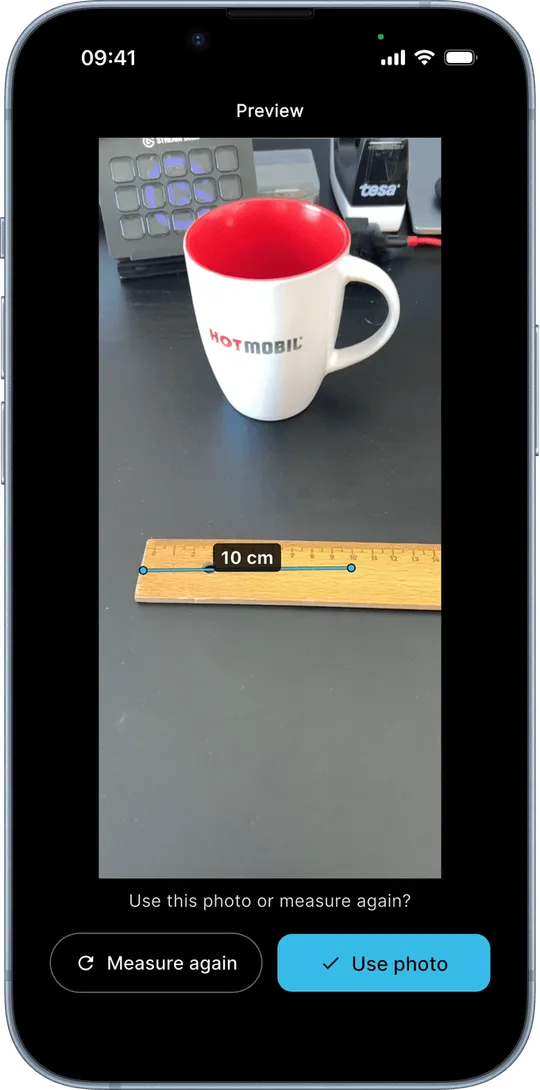
04 Aim at the end of the length and tap the plus button again. The line and the value appear in the image.
-
05 Add more measurements the same way, or tap Back to undo the last point.
-
06 Tap the shutter button and confirm the preview with Keep.
Tips
- Devices with LiDAR (Pro models of iPhone 12 and newer, iPad Pro from 2020) measure most precisely.
- In the image editor, each measurement appears as a chip above the photo. Tap a chip to remove that measurement.
Common mistakes
- The hint asks for more light or texture: point at a surface with visible structure or switch on more light.
- The hint says tracking was interrupted: move the device more slowly and set the points again.
- Switching back to Photo mode discards the points you have set. DokuAI asks before it does that.
Capture
How do I record a voice note?
What you achieve
You describe the situation by voice, and the AI turns it into the text of the report.
Before you start
- Microphone permission granted.
Step by step
-
01 On the Start screen, press and hold the blue tile Audio.
-
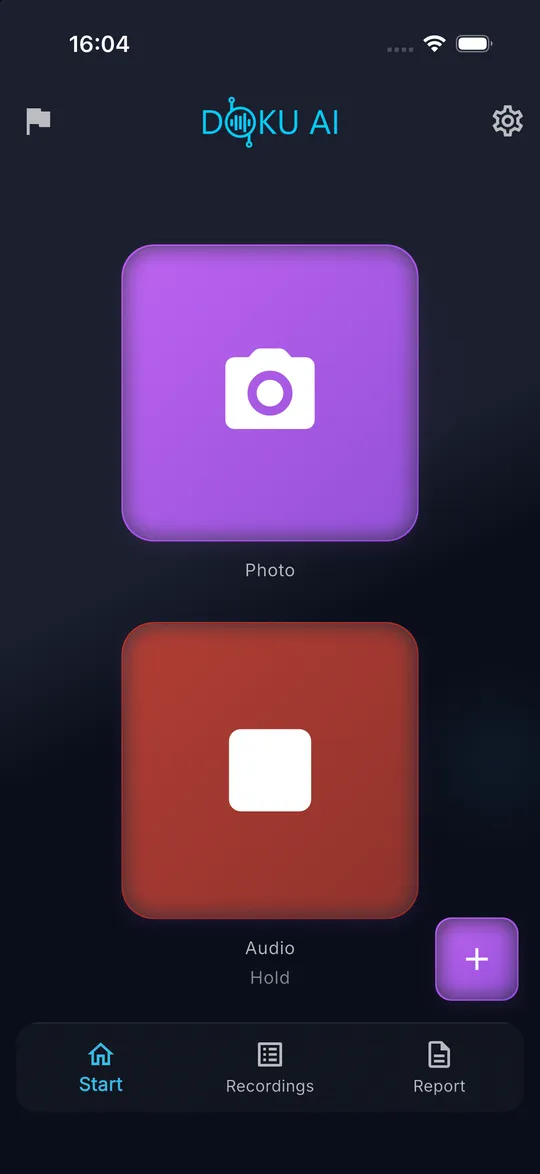
02 Speak while you hold the tile. The tile turns red and shows a stop symbol while DokuAI records.
-
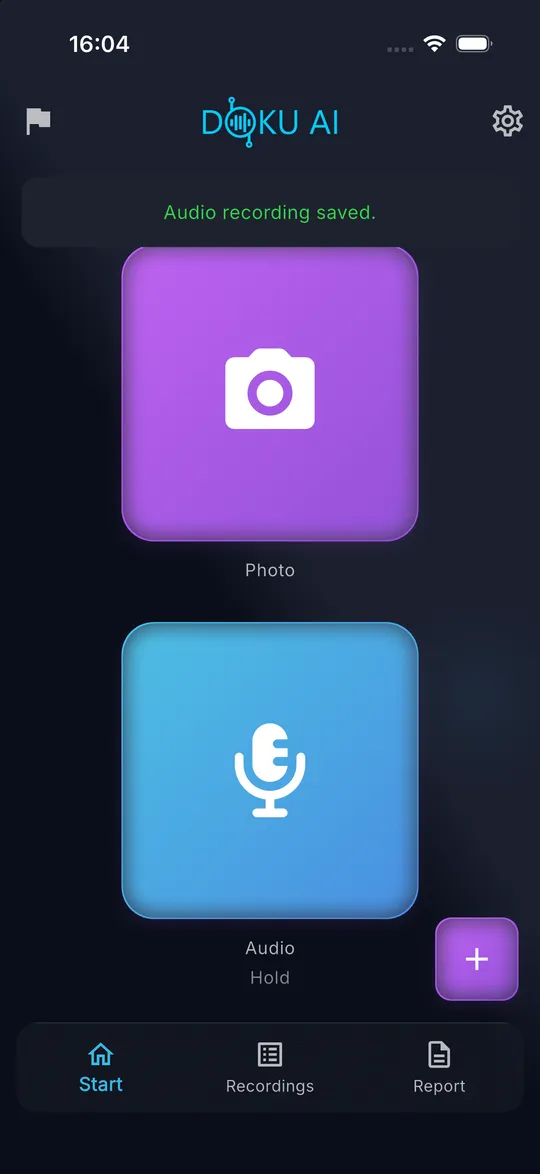
03 Release the tile. The message Audio recording saved. confirms the voice note.
Tips
- Say what you see, where it is and what should happen, for example: crack in the plaster next to the living room window, about 40 cm, repair before handover.
- Several short voice notes are easier to assign than one long one.
- Each calendar month includes 400 voice minutes.
Common mistakes
- A short tap does not record anything. DokuAI then shows Keep holding for recording.
- Recording in a loud environment: hold the phone closer to your mouth.
Capture
How do I add photos from the gallery?
What you achieve
Photos you took earlier, for example with the system camera, become part of the report.
Before you start
- Access to the photo library. On iPhone, access to selected photos is enough.
Step by step
-
01 Open the Recordings tab in the bottom bar.
-
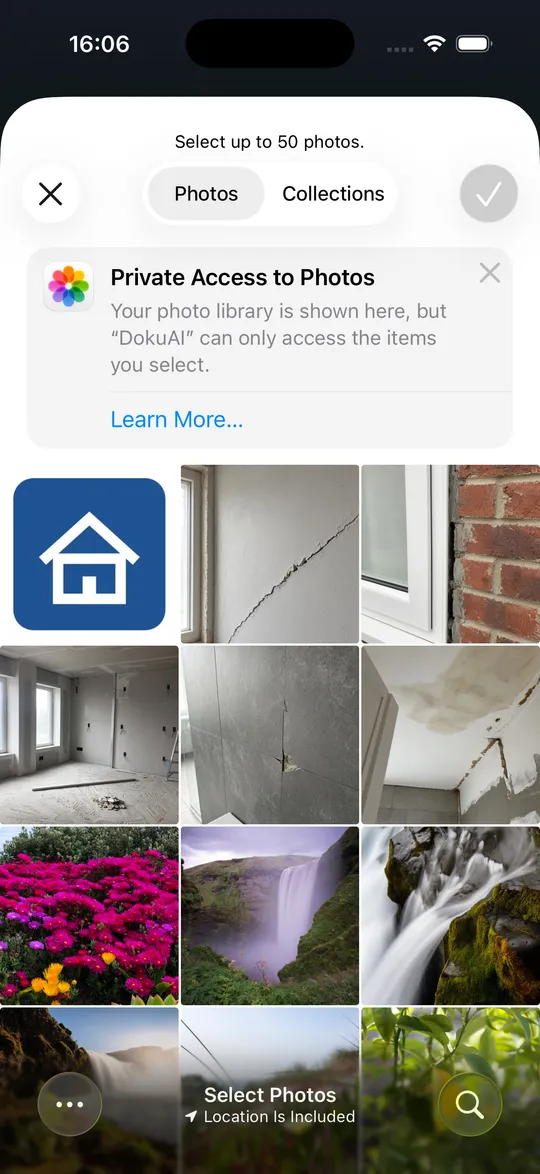
02 Tap the camera icon with the plus sign at the top right. The photo picker opens.
-
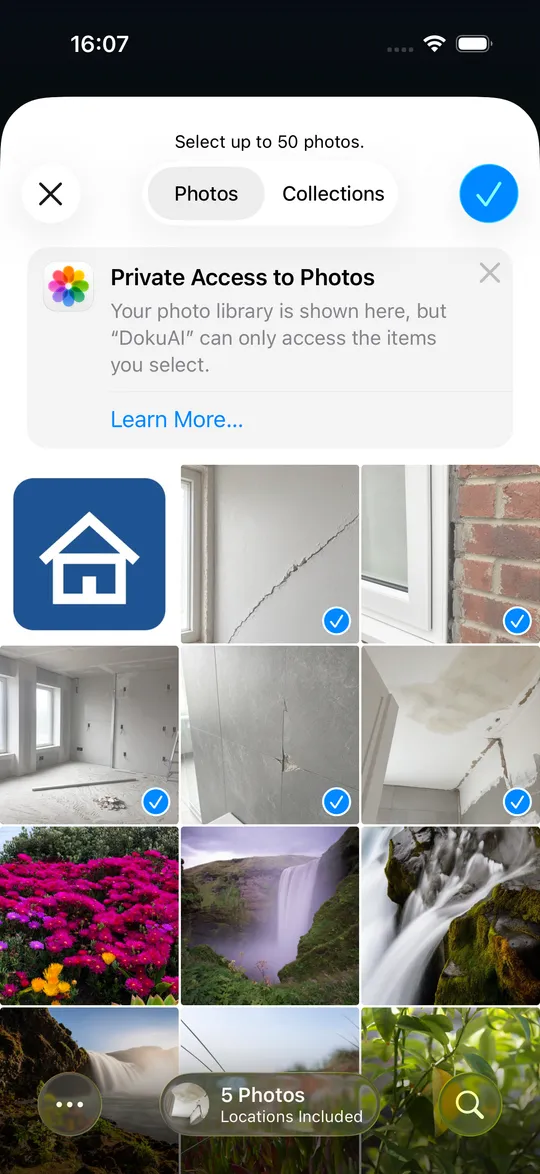
03 Tap the photos you want. You can select up to 50 photos per import.
-
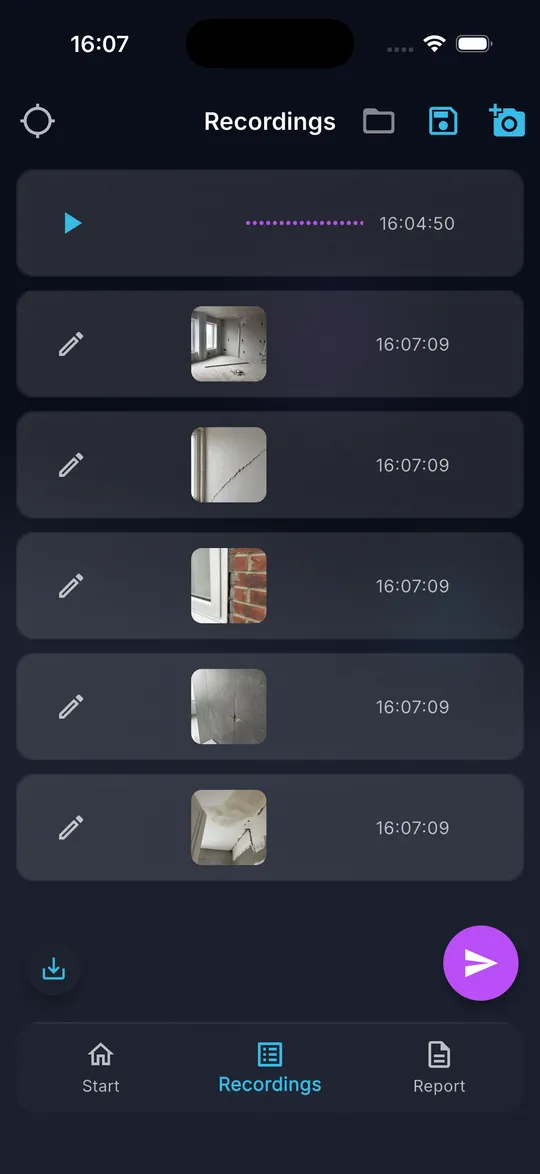
04 Confirm with the check mark at the top right. DokuAI shows the progress and adds the photos to the list.
Tips
- You can cancel a running import. The photos added until then stay in the list.
- Import more than 50 photos in several rounds.
Common mistakes
- Not all photos were added: the report has a maximum of 150 images. The message tells you how many were added.
- The import stops right away: DokuAI has no access to the photo library. Allow it in the system settings.
Capture
How do I set or change the address of the report?
What you achieve
The report shows the correct address of the site. The location is a mandatory part of every report.
Before you start
- Internet connection.
- For automatic detection: location permission.
Step by step
-
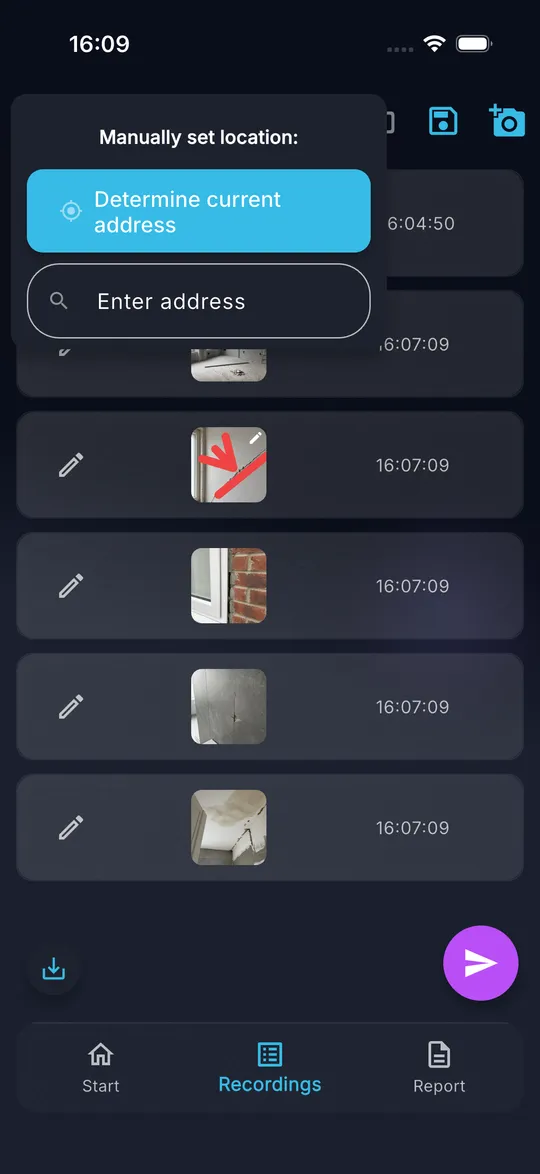
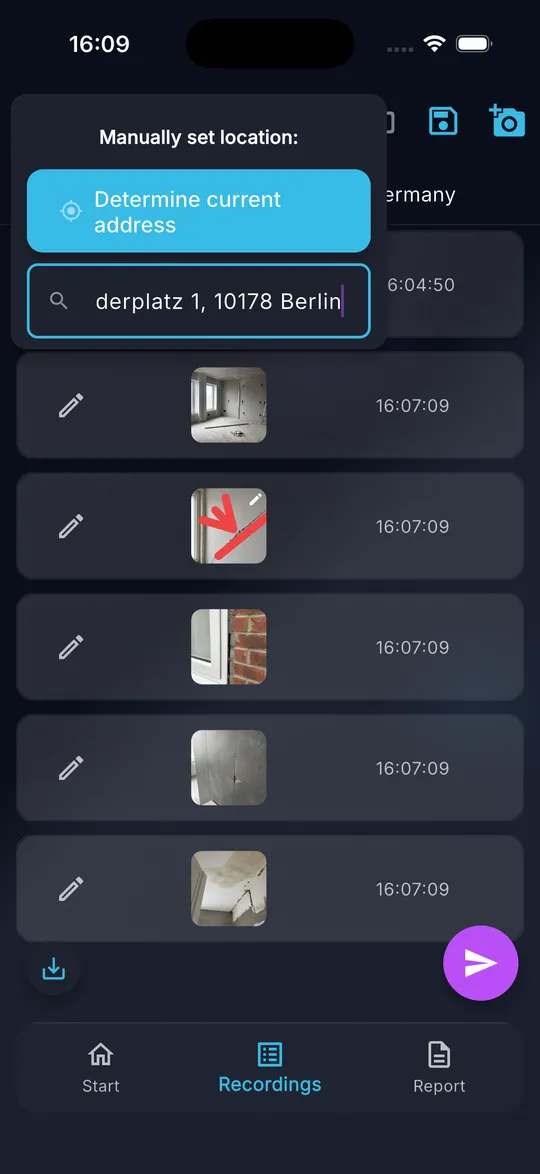
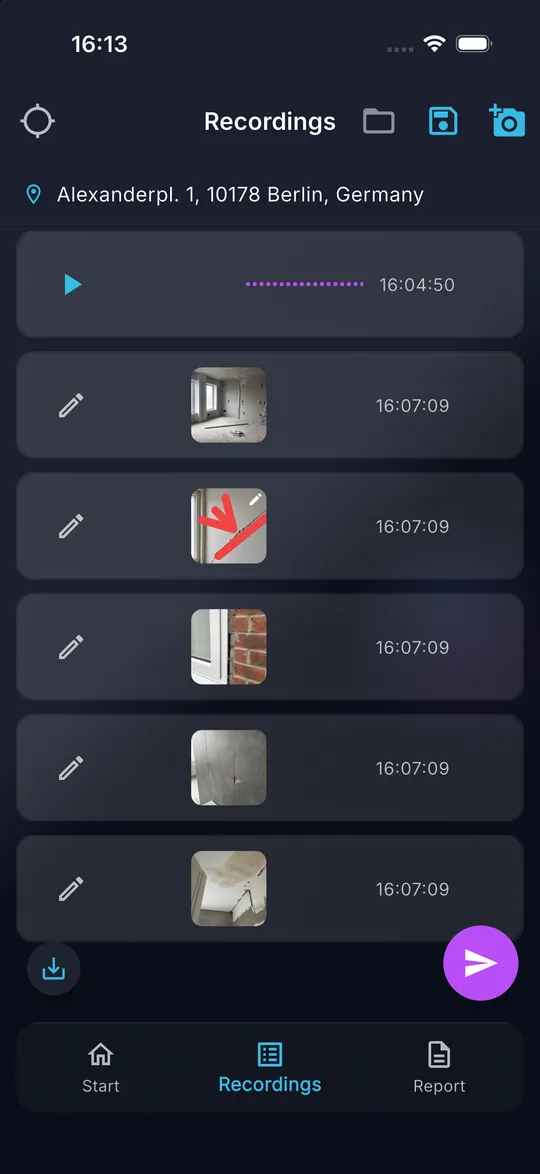
01 Open the Recordings tab and tap the target icon at the top left. The menu Manually set location: opens.
-
02 Tap Determine current address to use GPS. Allow location access when your phone asks.
-
03 Or tap Enter address, type the address and confirm with the enter key.
-
04 The address appears below the title of the list and is used in the report.
Tips
- If no location is set when you send, DokuAI tries GPS first and asks for an address only if that fails.
- Enter street, house number, postal code and city for an exact result.
Common mistakes
- The message No Internet Connection appears: the address lookup needs a connection.
- The address could not be found: check the spelling and add the city.
Edit and organize
How do I sort and delete recordings?
What you achieve
The order in the list is the order in the report, and wrong photos or voice notes are removed.
Before you start
- At least one photo or voice note in the Recordings tab.
Step by step
-
01 Open the Recordings tab.
-
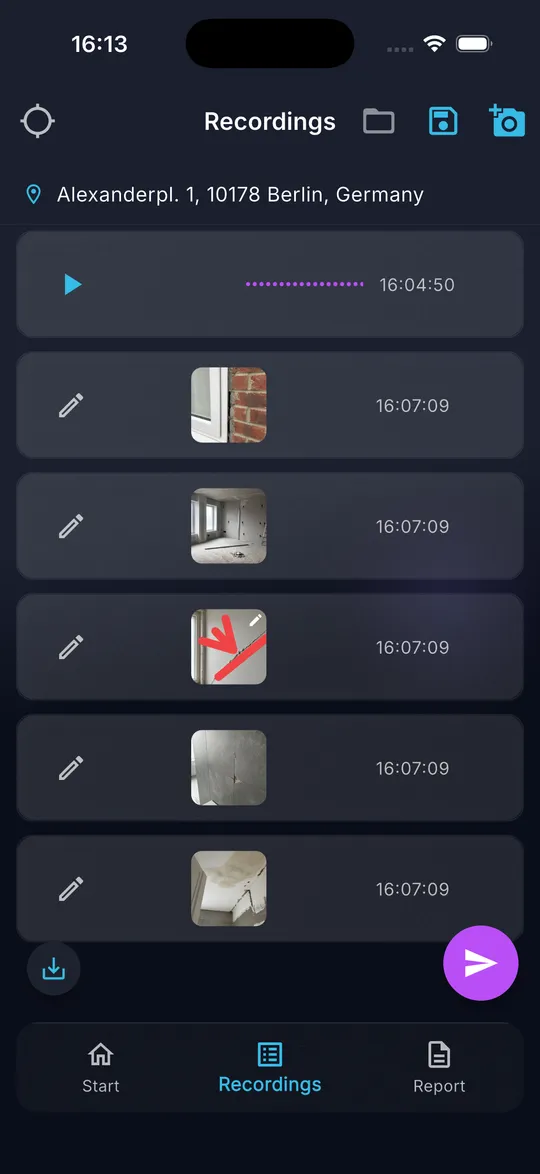
02 To move an entry, press and hold it and drag it to the new position.
-
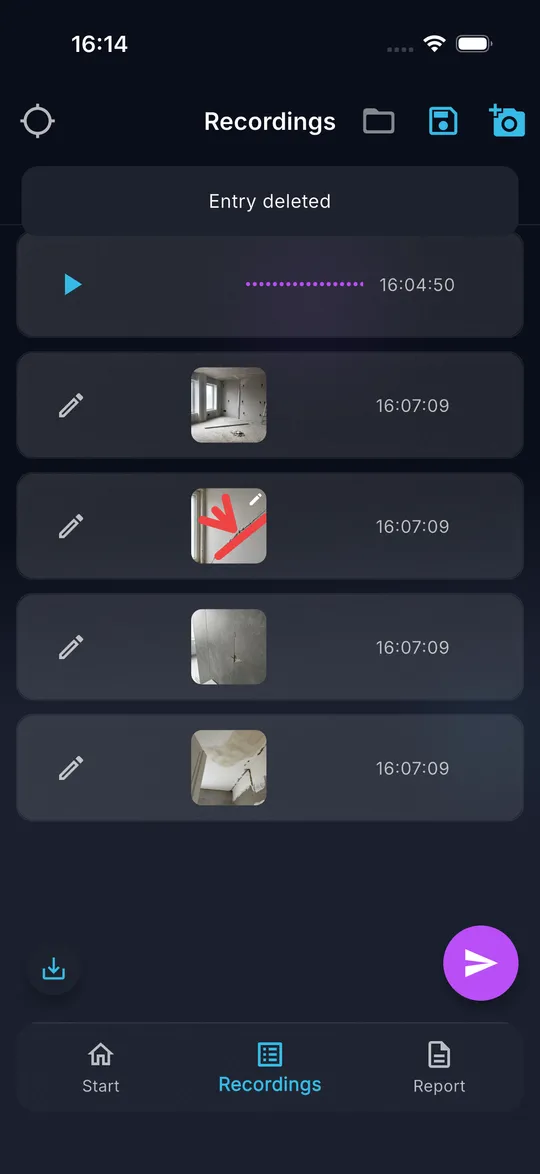
03 To delete an entry, swipe it from right to left. The message Entry deleted confirms it.
-
04 Tap the play button of a voice note to listen to it.
Tips
- Sort the photos room by room before you send. The AI follows this order.
Common mistakes
- Deleting cannot be undone. Save the recordings as a project first if you are not sure.
Edit and organize
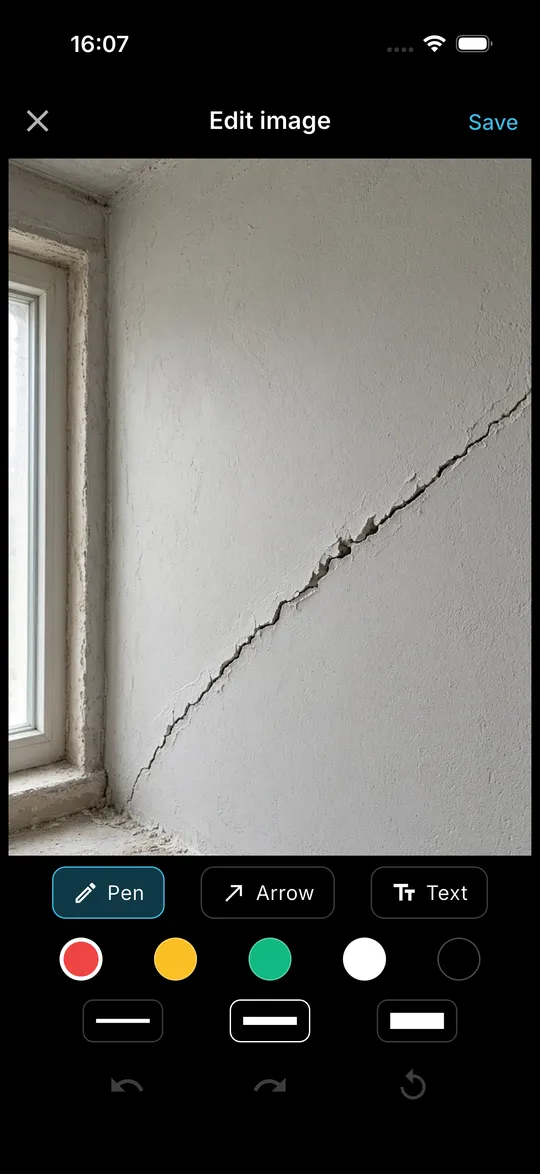
How do I mark damage in a photo?
What you achieve
Lines, arrows and text show exactly which spot in the photo matters.
Before you start
- At least one photo in the Recordings tab.
Step by step
-
01 In the Recordings tab, tap the pencil next to the photo. The screen Edit image opens.
-
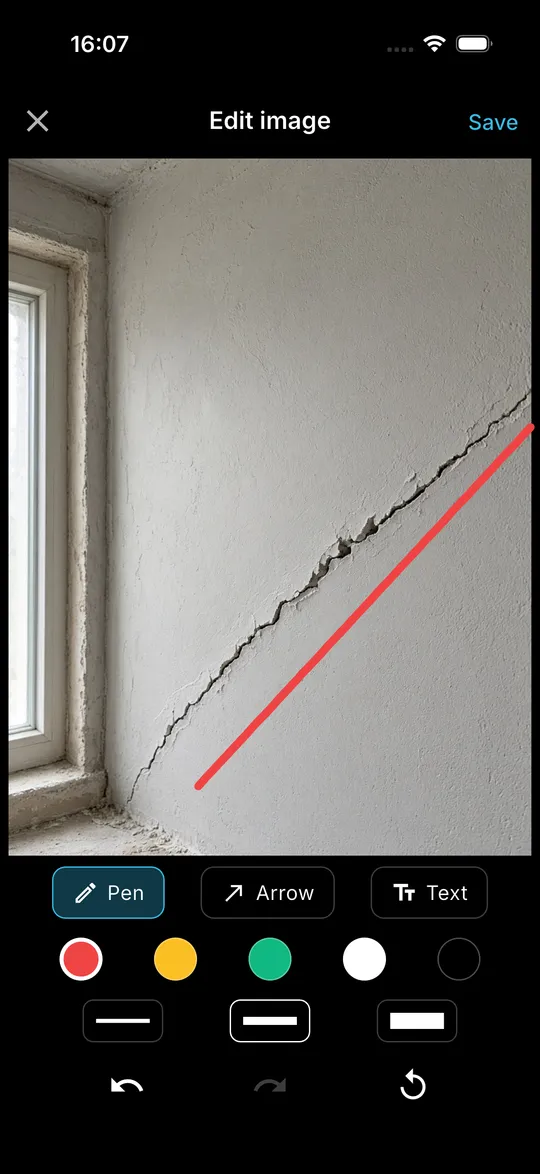
02 Choose Pen, a color and a line width, and draw directly on the photo.
-
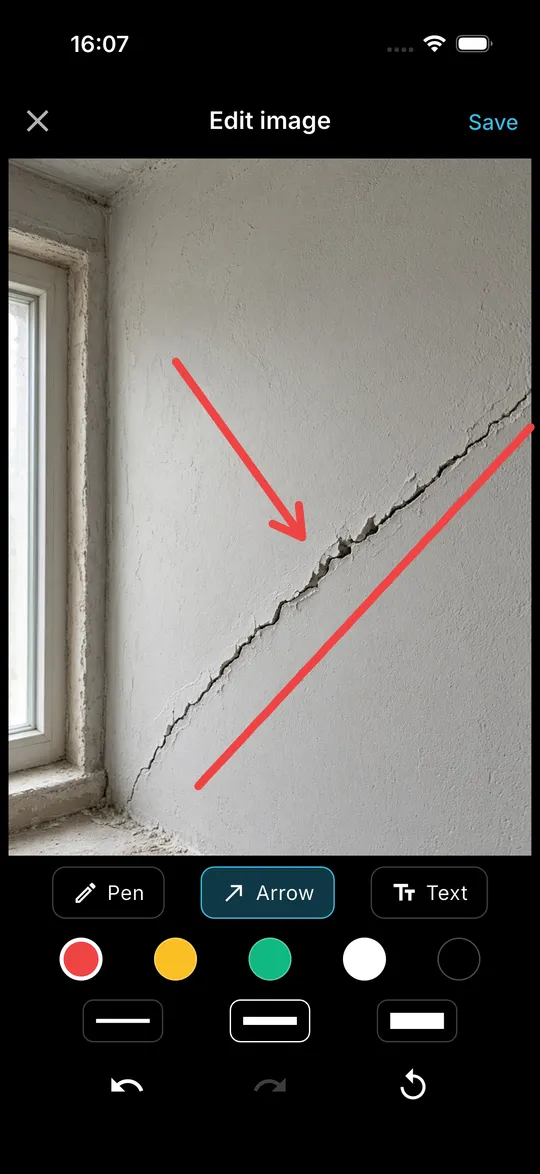
03 Choose Arrow and drag from the start to the tip of the arrow.
-
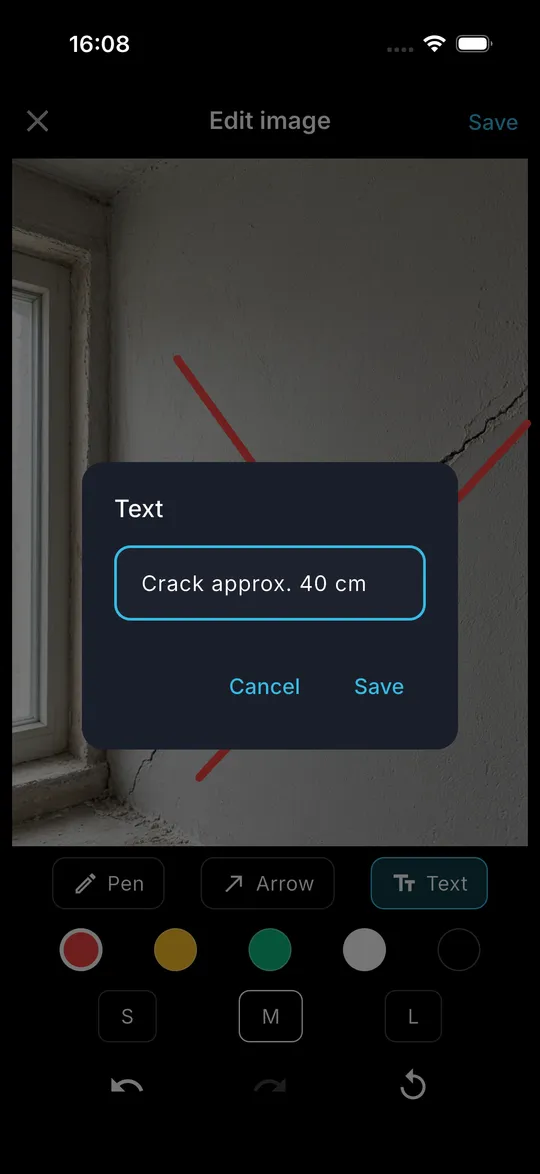
04 Choose Text, tap the spot in the photo, type the text and tap Save.
-
05 Drag a text to move it. Long-press a text to edit or delete it.
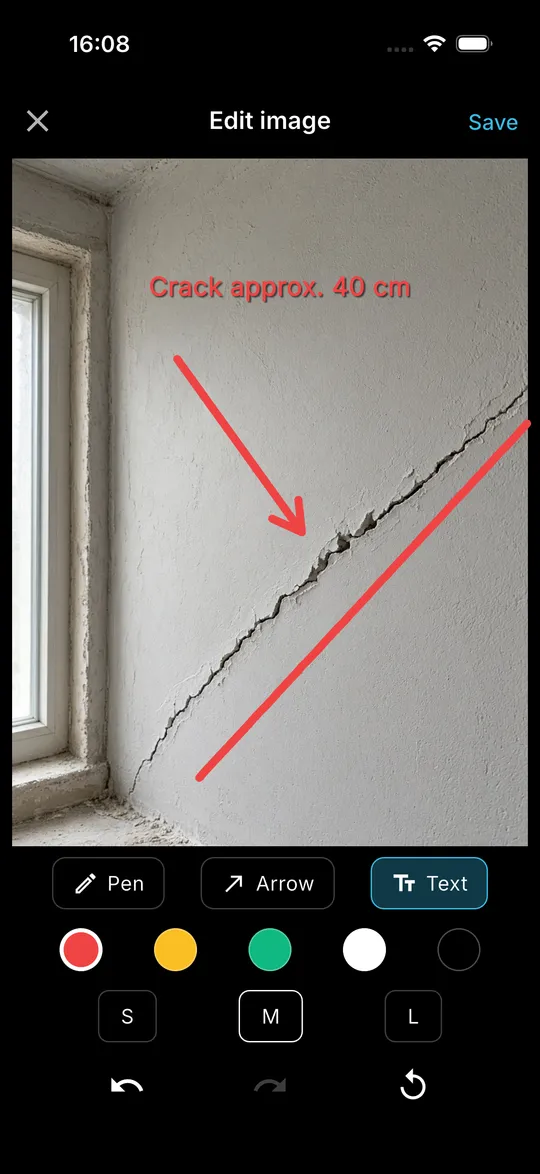
-
06 Use the arrows at the bottom to undo or redo. The round arrow removes all markings after a confirmation.
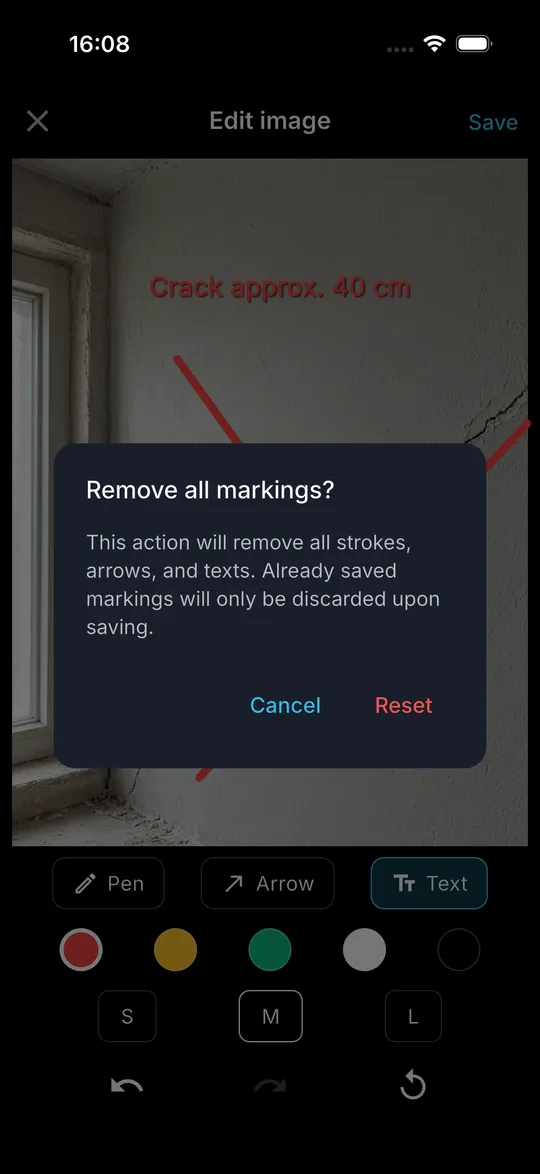
-
07 Tap Save at the top right. A small pencil on the thumbnail shows the edited photo.
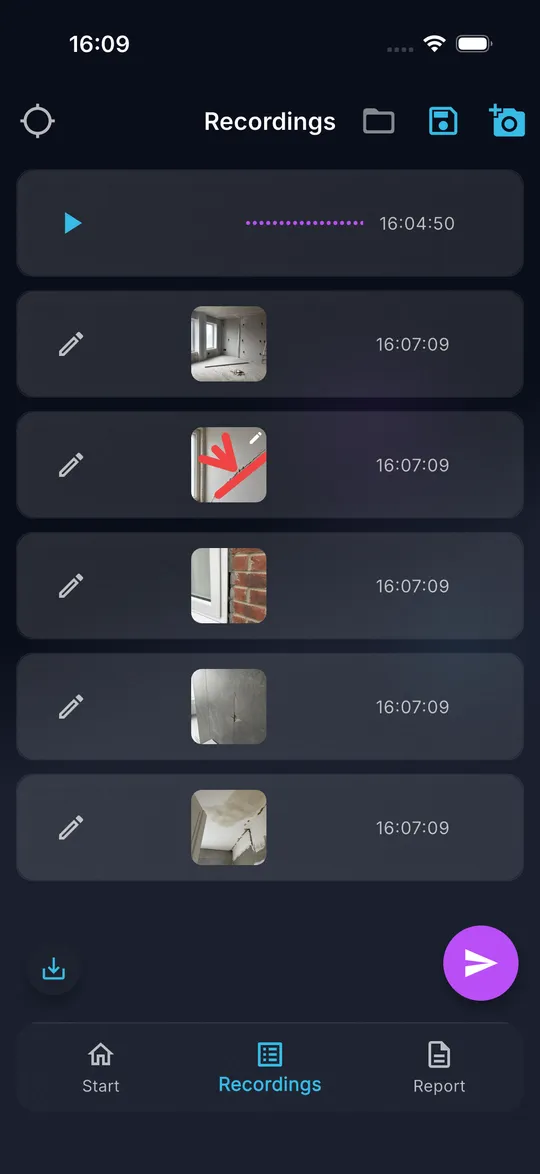
Tips
- The original photo is never changed. You can change or remove the markings later.
- The markings appear in the report, in the PDF and in exported images.
Common mistakes
- Leaving with the X discards the changes. DokuAI asks Unsaved changes before it does.
- A text close to the edge can reach beyond the photo. Drag it into the image so that it is not cut off.
Edit and organize
How do I save all images in the Photos app?
What you achieve
All images of the current report, including markings and measurements, are stored in the photo library of your phone.
Before you start
- At least one image in the Recordings tab.
- Access to the photo library.
Step by step
-
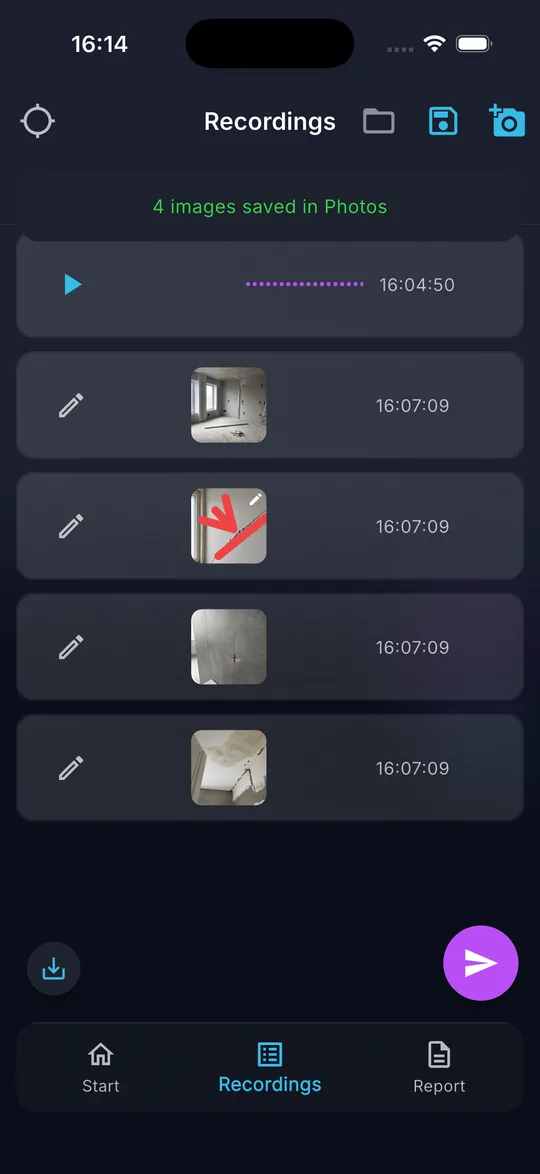
01 Open the Recordings tab and tap the download icon at the bottom left.
-
02 Confirm the question Save all images? with Yes, save.
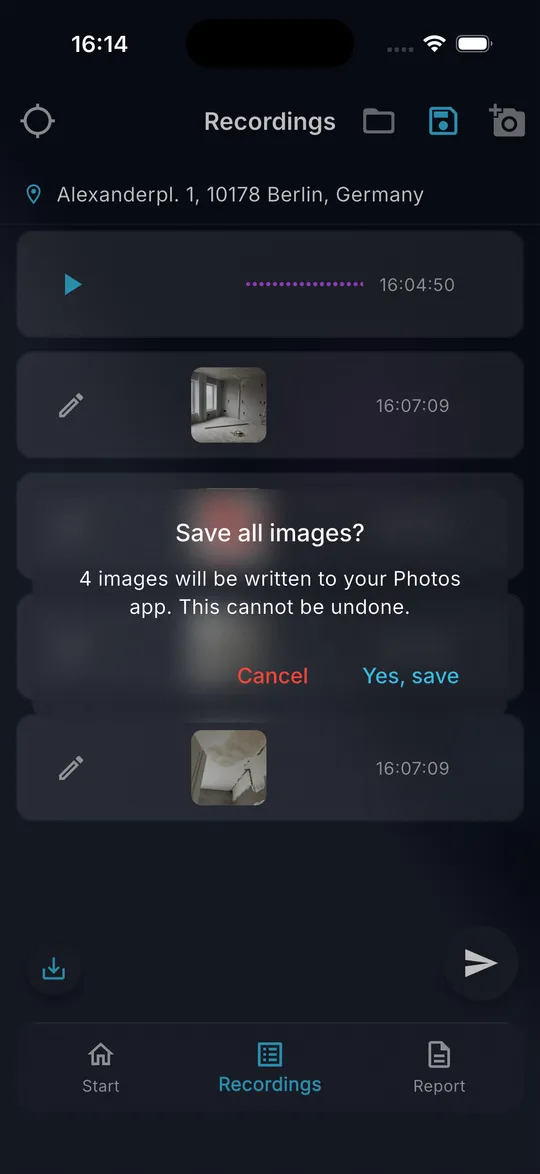
-
03 Allow access to the photo library if your phone asks. DokuAI shows the progress.
-
04 The message confirms how many images were saved in Photos.
Tips
- Under Settings, Always save images stores every new photo in the photo library automatically.
Common mistakes
- The export cannot be undone in DokuAI. Delete unwanted copies in the Photos app.
- Without access to the photo library, no image can be exported. Allow it in the system settings.
Edit and organize
How do I save, open and delete a project?
What you achieve
A site with several visits keeps its photos and voice notes, and you continue later where you stopped.
Before you start
- At least one recording in the Recordings tab.
Step by step
-
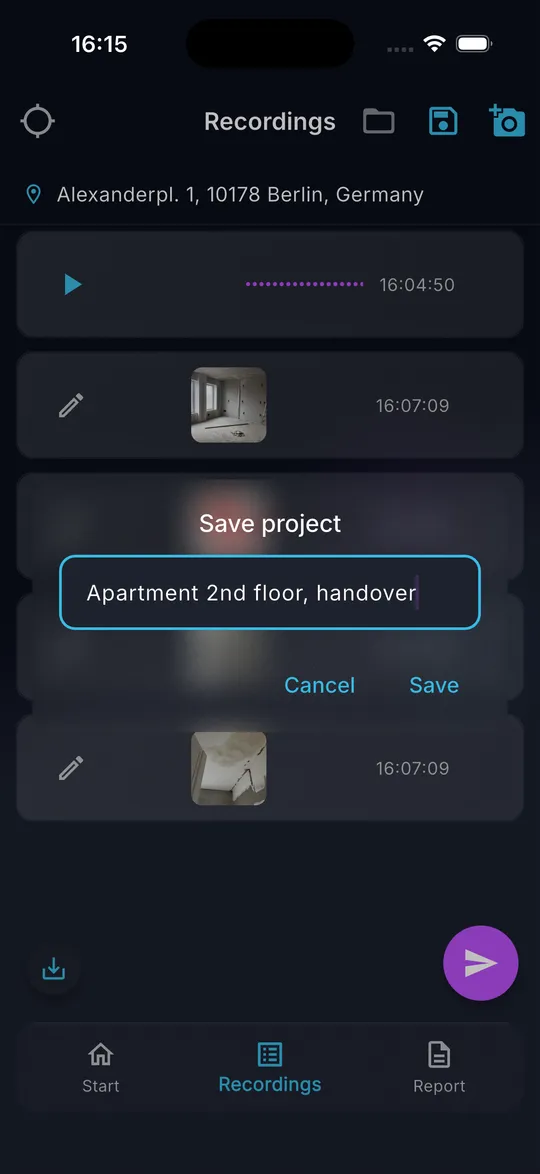
01 In the Recordings tab, tap the disk icon at the top. The dialog Save project opens with the address as suggested name.
-
02 Change the name if you want and tap Save. A project you have loaded is updated instead.
-
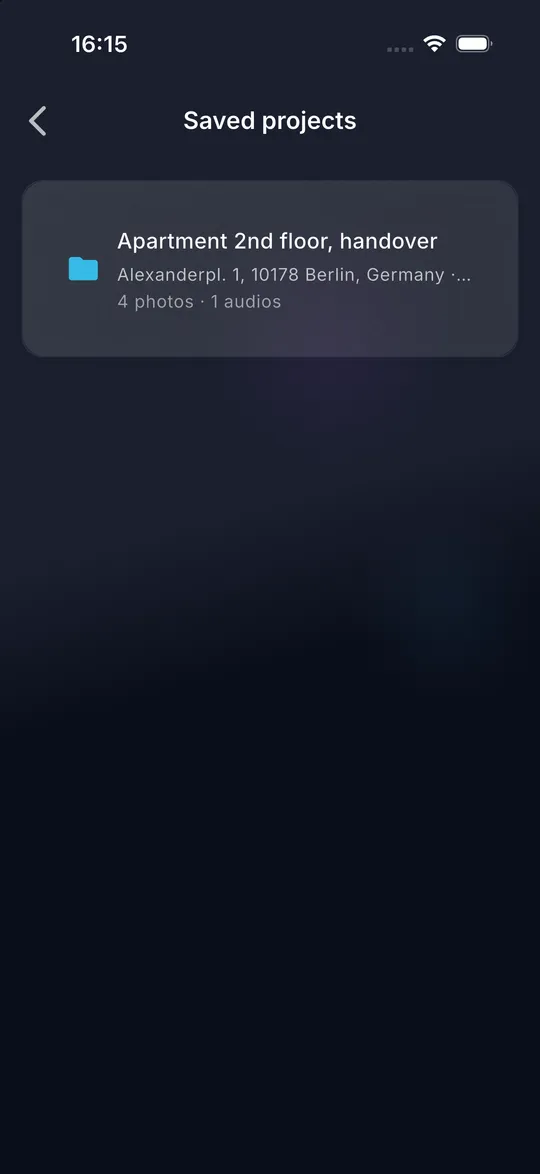
03 To open a project, tap the folder icon. The list Saved projects shows name, address and the number of photos and voice notes.
-
04 Tap a project to load it. If the current recordings are not saved, DokuAI asks whether to save or discard them first.
-
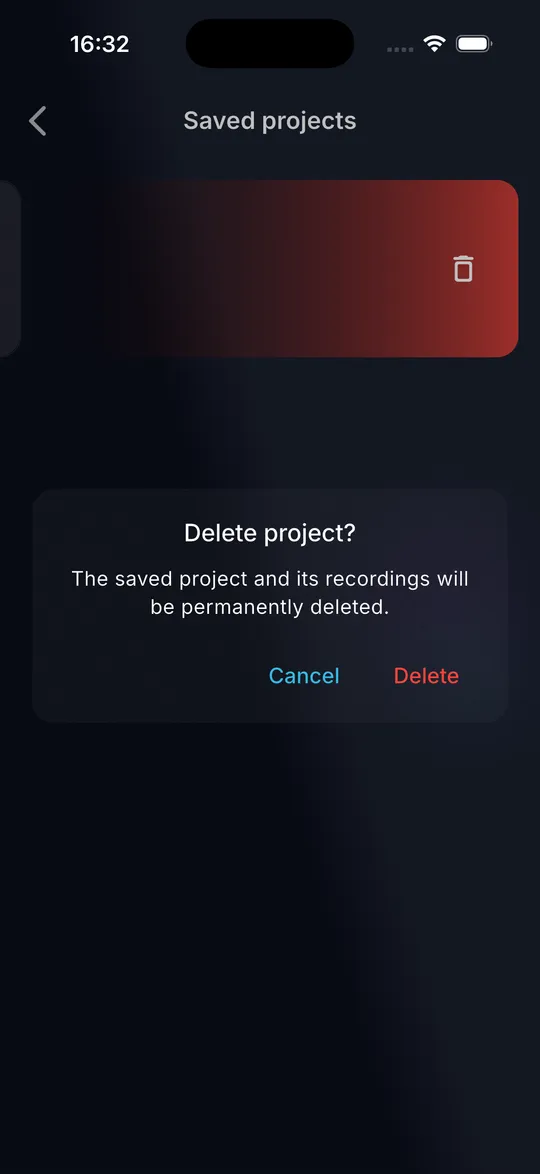
05 To delete a project, swipe it from right to left and confirm with Delete.
Tips
- A project is an independent copy. Sending a report does not change the project.
- Without a name, the address is used. Without an address, the project is named Project with the date.
Common mistakes
- Deleting a project removes its recordings permanently.
- A project with more than 150 images can be loaded, but it can only be sent after you remove images.
Report and PDF
How do I create the report?
What you achieve
The AI analyses photos and voice notes and returns a structured report with summary, findings, severity and recommendations.
Before you start
- At least one photo or voice note.
- A location (DokuAI determines it automatically if possible).
- At most 150 images in the report and enough of the monthly allowance left.
Step by step
-
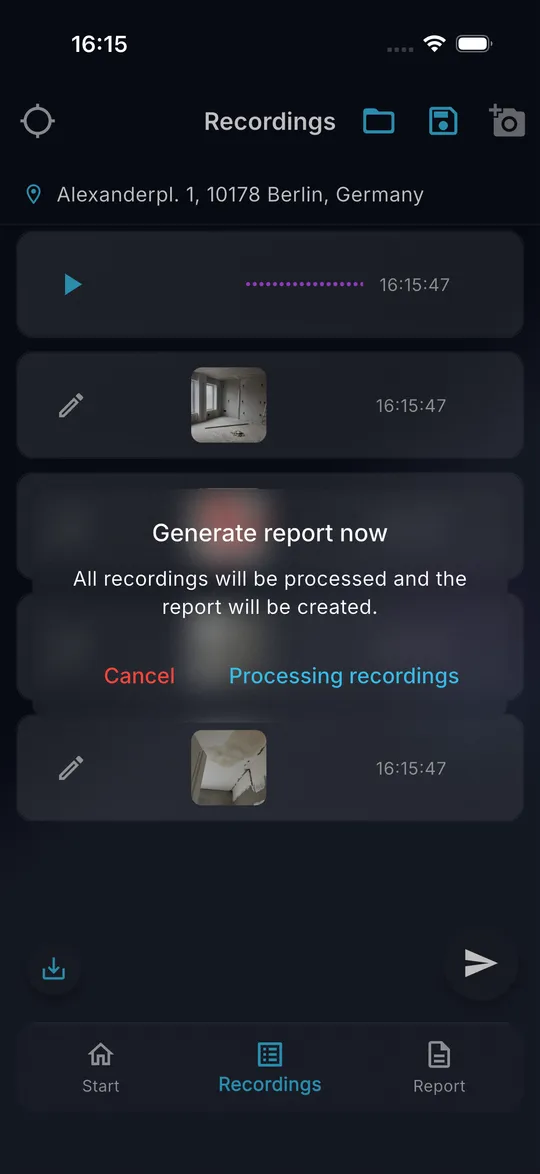
01 Open the Recordings tab and tap the purple paper plane button at the bottom right.
-
02 Confirm Generate report now with Processing recordings.
-
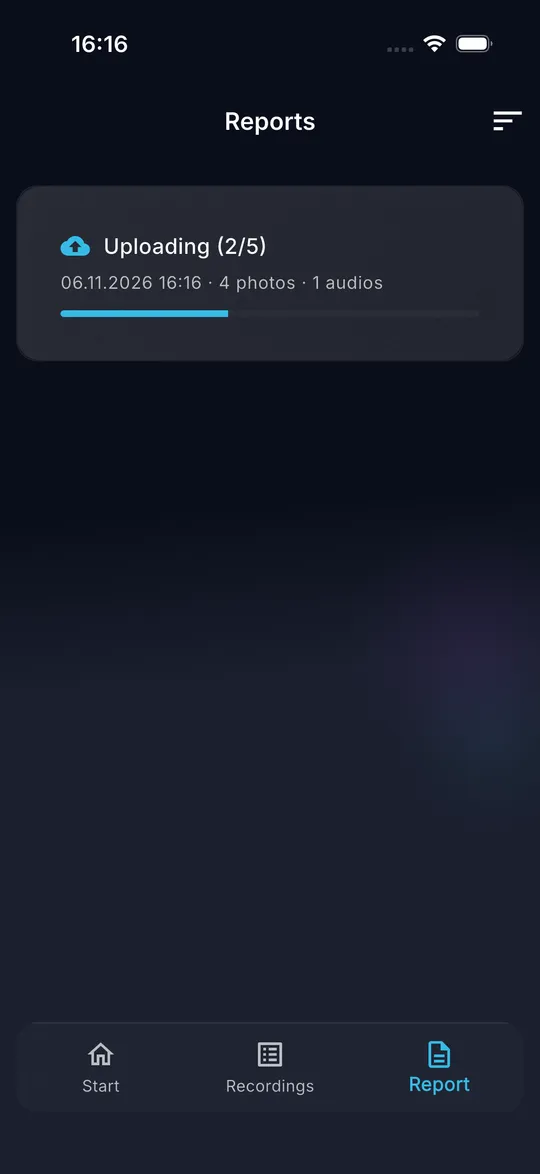
03 DokuAI switches to the Report tab. A card shows the upload of the photos and voice notes.
-
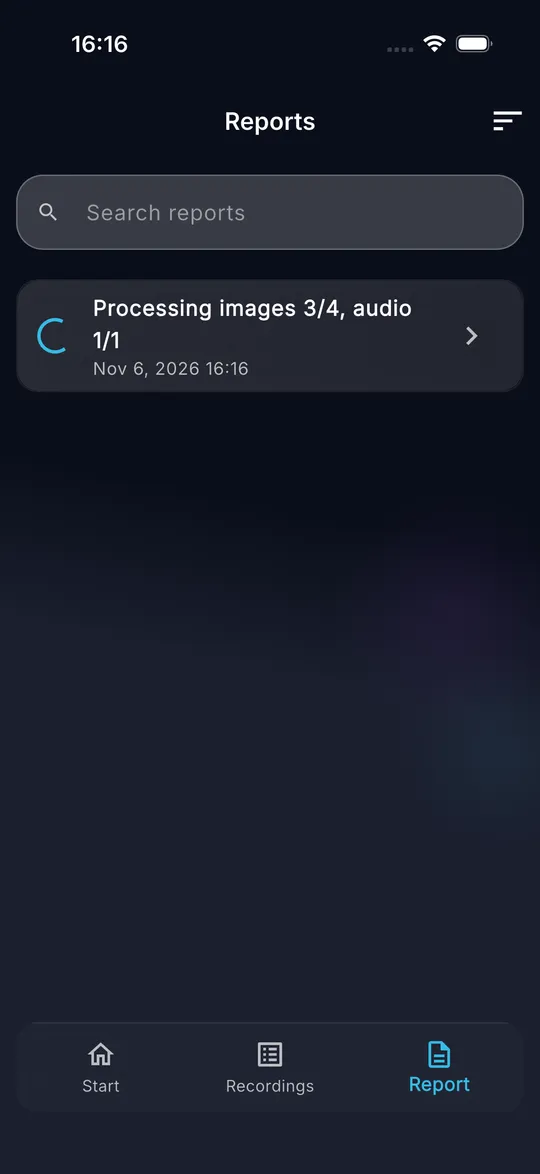
04 The status then shows how many images and voice notes have been processed.
-
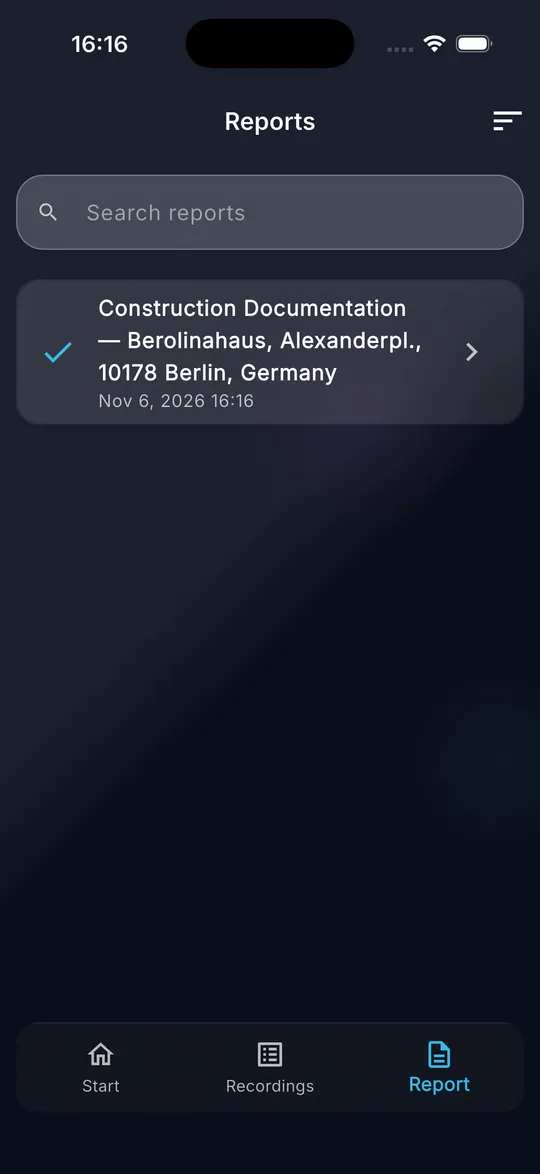
05 When the check mark appears, the report is ready. In our test with five photos and one voice note this took about one minute.
Tips
- Sending works without internet. DokuAI keeps the report in a queue and uploads it as soon as there is a connection.
- Your recordings stay in the list after sending. Use New on the Start screen to begin the next report.
Common mistakes
- The message Location required appears: enable location services or enter the address manually.
- The message Monthly limit reached appears: the allowance of 100 reports, 1,000 images or 400 voice minutes for this month is used up. It resets on the first day of the next month.
Report and PDF
What happens when I send without internet?
What you achieve
No report is lost, even in a basement without signal.
Before you start
- A report that you have sent.
Step by step
-
01 Send the report as usual. The card in the Report tab shows Waiting for connection.
-
02 As soon as the phone is online again, DokuAI starts the upload by itself. The card shows the progress.
-
03 Tap Send now to start a new attempt right away.
-
04 If sending has failed, the card shows Sending failed. Tap Try again.
-
05 To discard a waiting report, tap the delete button on the card and confirm. Its recordings are deleted permanently.
Tips
- The upload continues where it stopped. Files that were already uploaded are not sent twice.
- Waiting reports count towards the monthly allowance, so you cannot exceed it offline.
Common mistakes
- The card stays in Sending failed: check View service availability in the settings and try again.
Report and PDF
How do I find, sort, stop and delete reports?
What you achieve
You keep track of many reports and remove the ones you no longer need.
Before you start
- At least one report in the Report tab.
Step by step
-
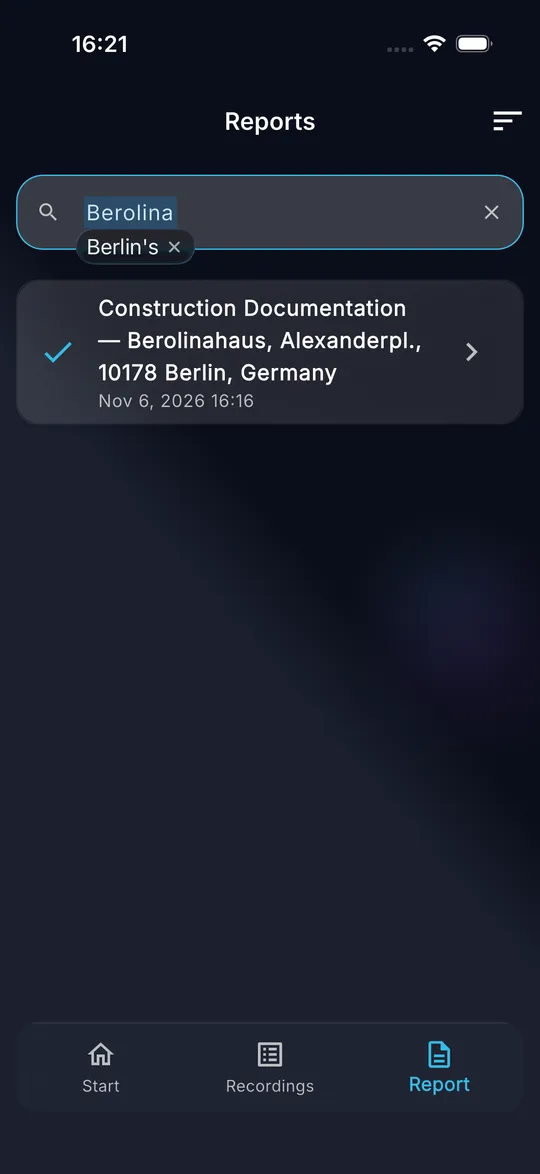
01 Type a word of the title into Search reports. The list shows only matching reports.
-
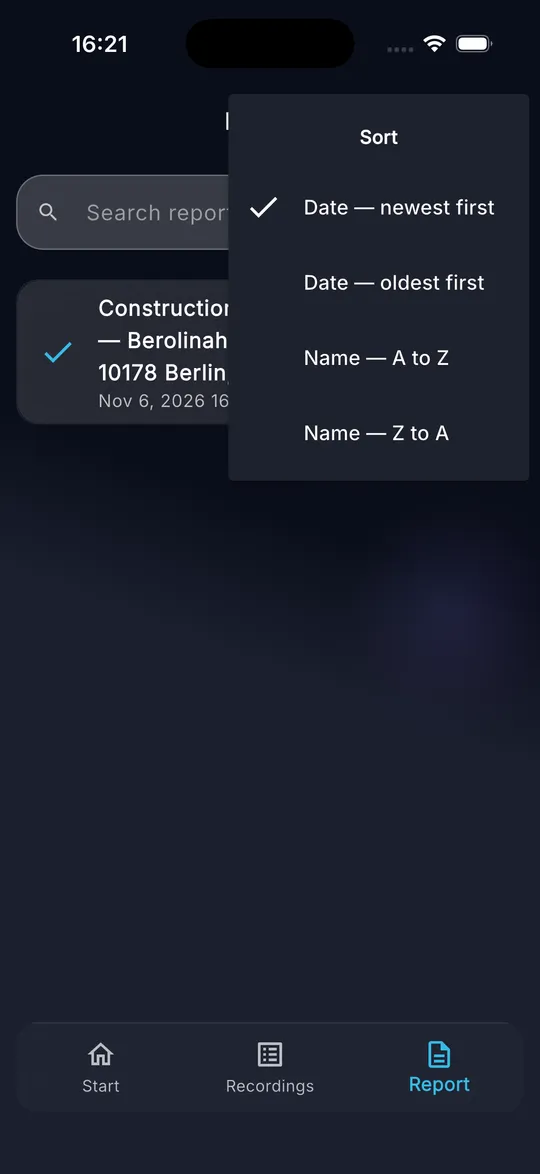
02 Tap the sort icon at the top right and choose date or name, ascending or descending.
-
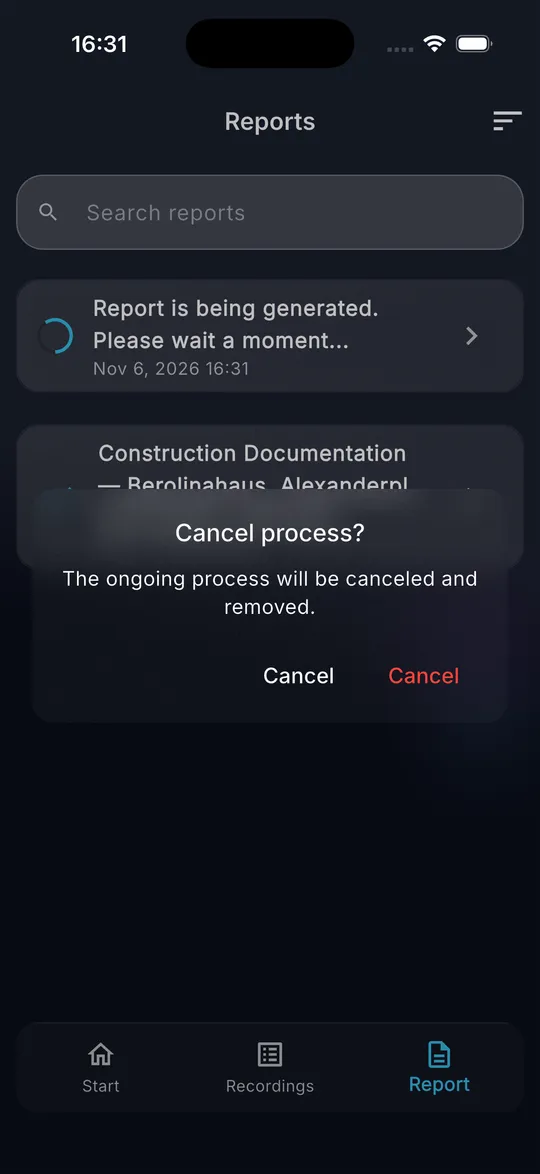
03 To stop a report that is still being processed, press and hold it and confirm with the red button.
-
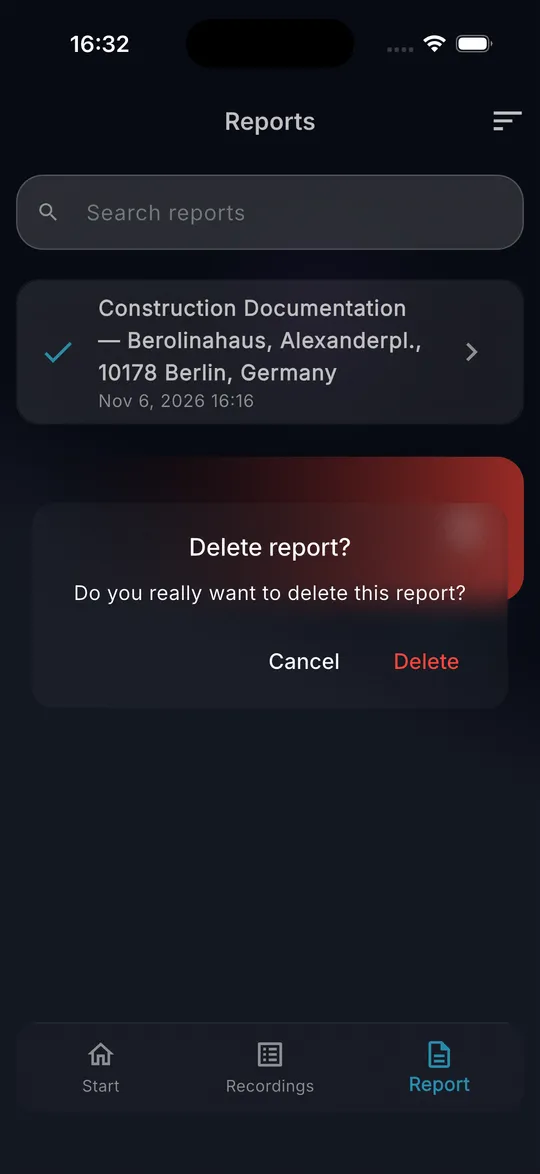
04 To delete a finished report, swipe it from right to left and confirm with Delete.
-
05 Pull the list down to fetch reports that have been completed in the meantime.
Tips
- Reports that are still being processed always stay at the top of the list.
- Reports can be edited for 365 days. In the last 14 days the list shows how many days are left, afterwards only the PDF is available.
Common mistakes
- The search only looks at titles, not at the text of the report.
Report and PDF
How do I change the text of a report?
What you achieve
You correct or complete the report before you send it to your client.
Before you start
- A finished report (check mark in the Report tab).
- An active subscription after the first report.
Step by step
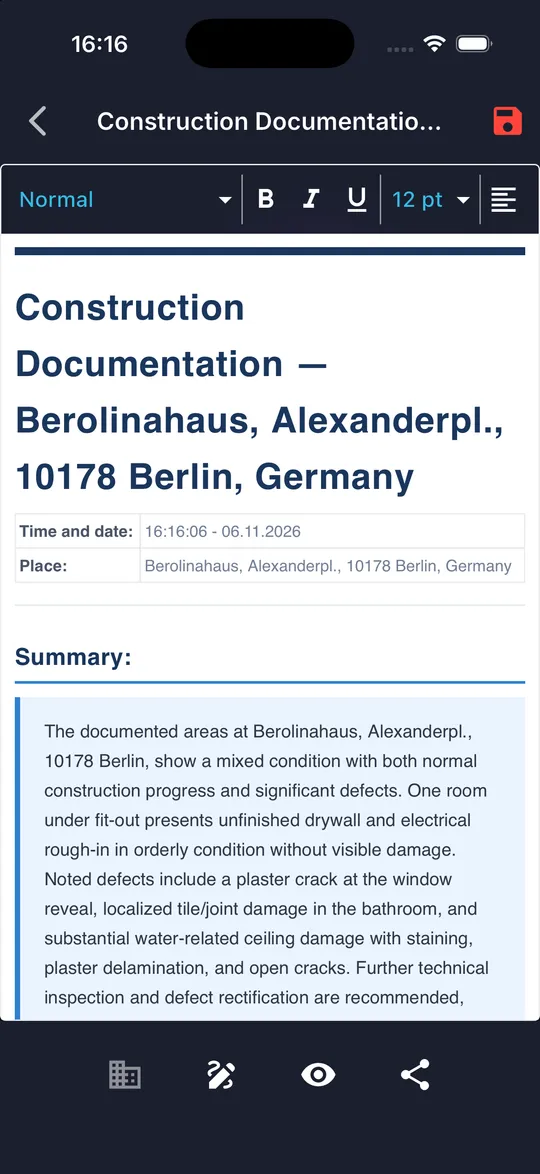
-
01 Tap the finished report in the Report tab. The report opens in the editor.
-
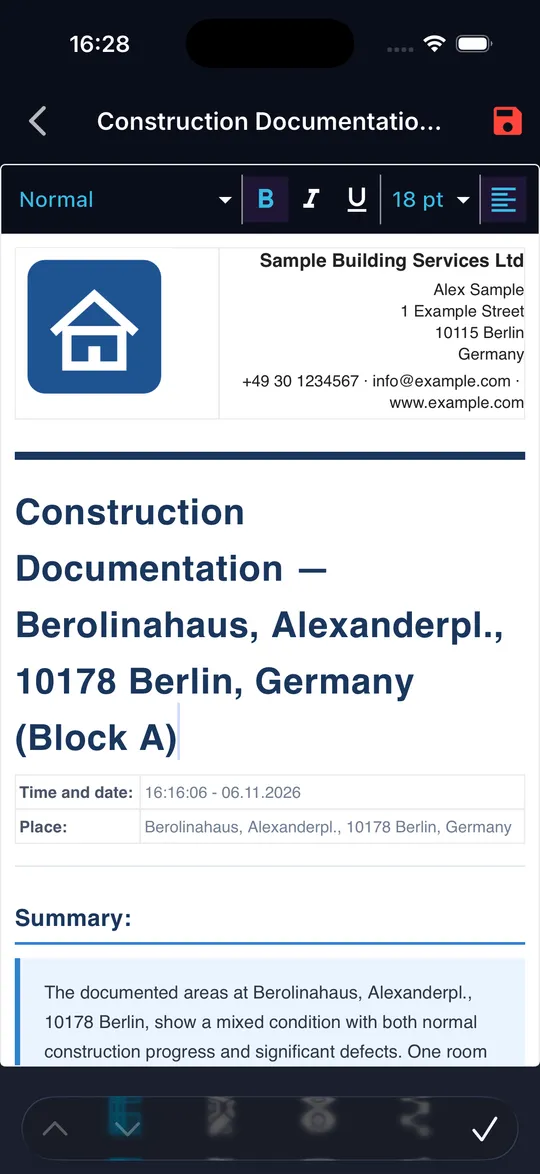
02 Tap into the text and type. Use the toolbar for style, bold, italic, underline, size and alignment. Swipe the toolbar sideways for more tools.
-
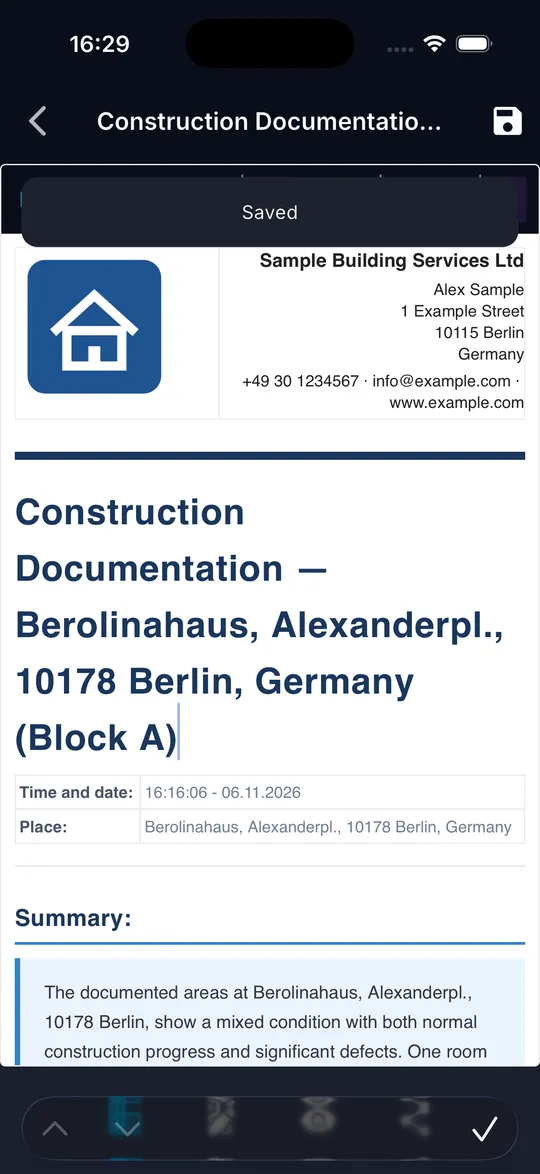
03 Tap the disk icon at the top right. A red disk means unsaved changes, the message Saved confirms saving.
Tips
- Changes are saved in the report on your device and appear in the next PDF.
Common mistakes
- Leaving the report with unsaved changes: DokuAI asks whether to save or discard them.
Report and PDF
How do I add my company letterhead to the report?
What you achieve
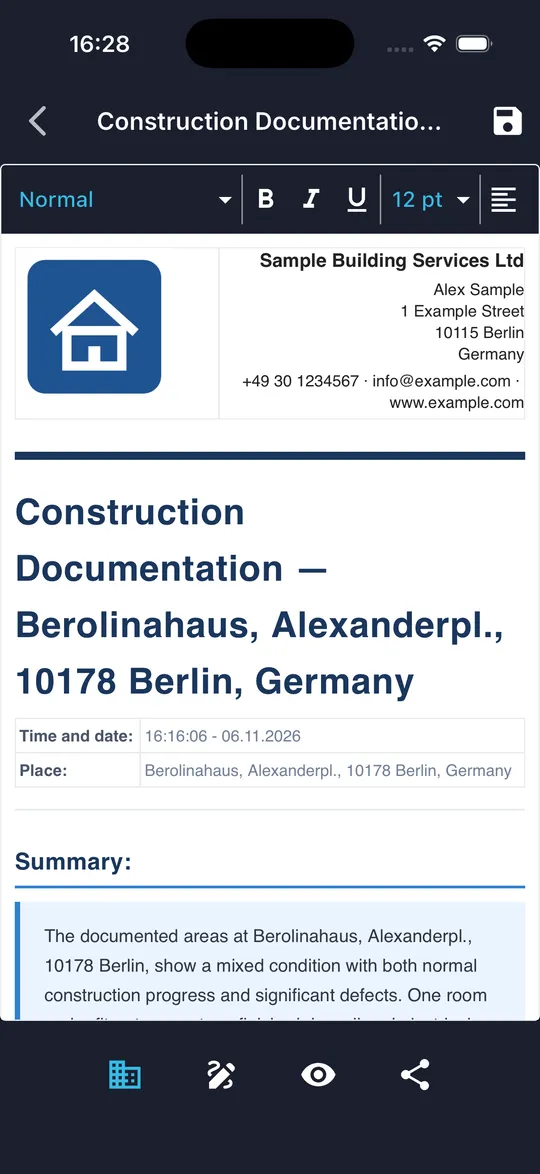
Your logo, address and contact details appear at the top of every report.
Before you start
- Company data entered once in the settings.
Step by step
-
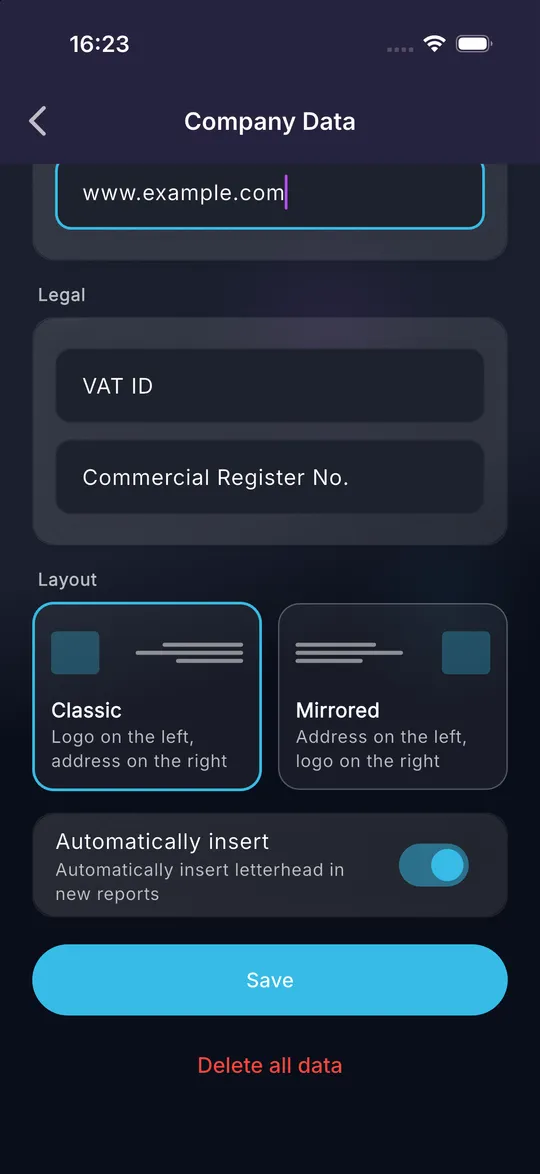
01 Open Settings and tap Company Data.
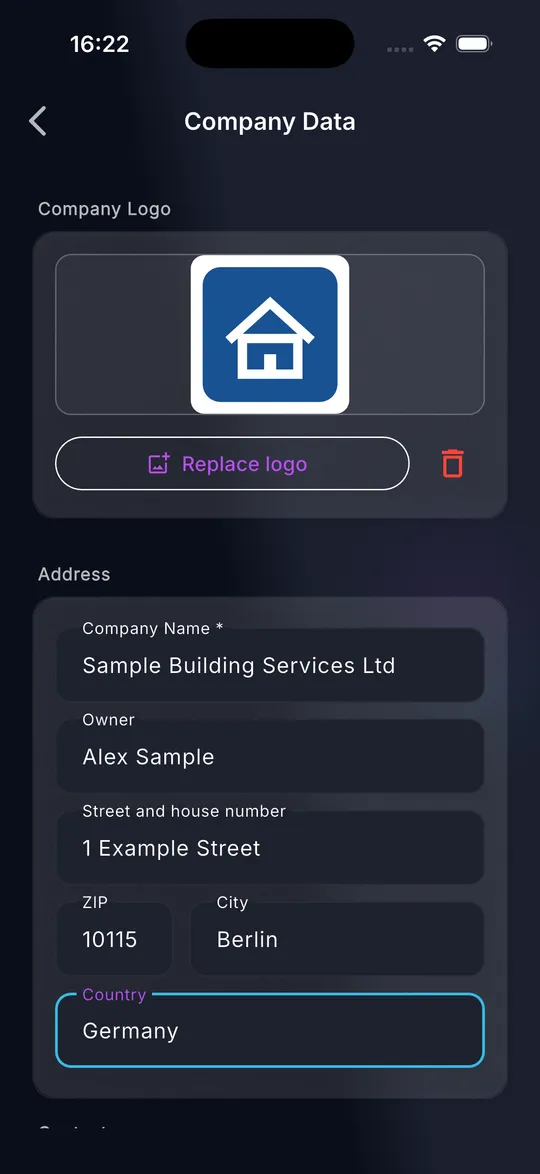
-
02 Tap Select logo and choose your logo from the photo library. Fill in at least Company Name, which is required, then address and contact details.
-
03 Choose the layout Classic (logo on the left) or Mirrored (logo on the right). Leave Automatically insert switched on to add the letterhead to every new report.
-
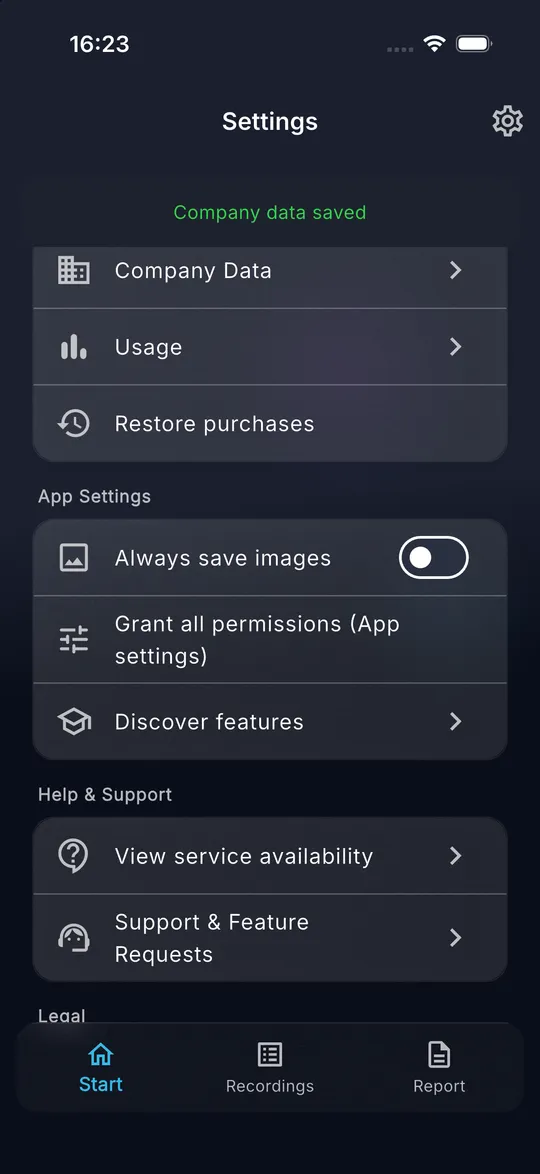
04 Tap Save. The message Company data saved confirms it.
-
05 In an open report, the building icon at the bottom left inserts or removes the letterhead.
Tips
- Reports that already exist keep their letterhead when you change the company data. Remove and insert it again to show the new data.
- VAT ID and commercial register number are optional.
Common mistakes
- The building icon shows Company data not provided: enter the company data first.
Report and PDF
How do I sign a report on the screen?
What you achieve
You, your client or a tenant sign directly on the phone, and the signature with the name appears in the PDF.
Before you start
- A finished, opened report.
Step by step
-
01 Tap the pen icon in the bottom bar of the report.
-
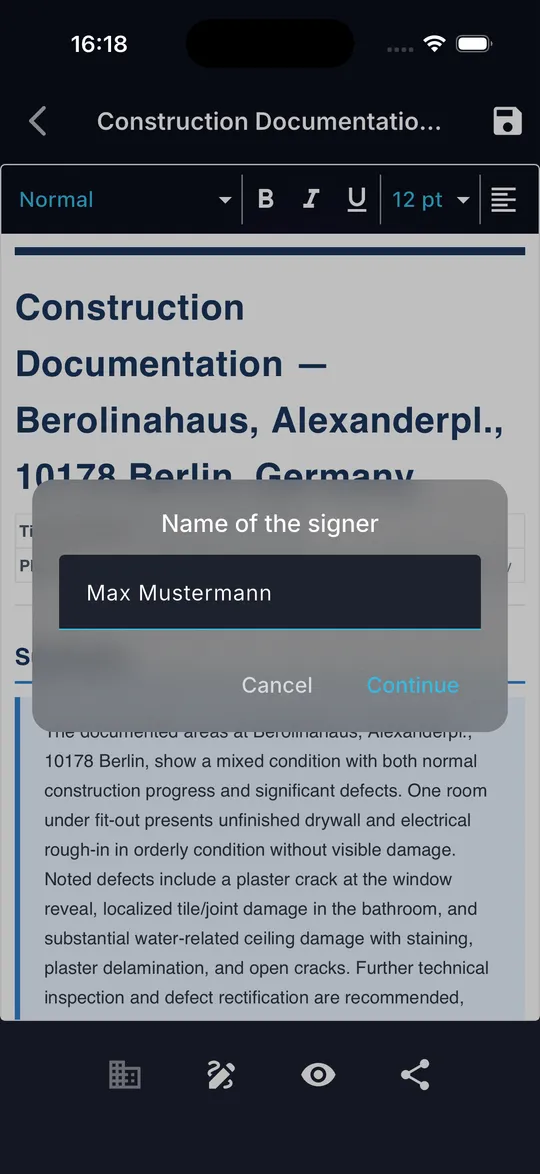
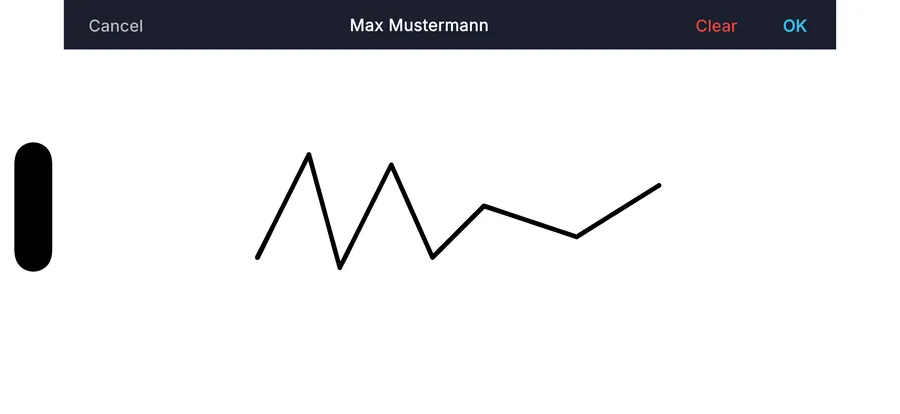
02 Enter the name of the person who signs in Name of the signer and tap Continue.
-
03 Turn the phone and sign with your finger. Clear starts over, OK inserts the signature.
-
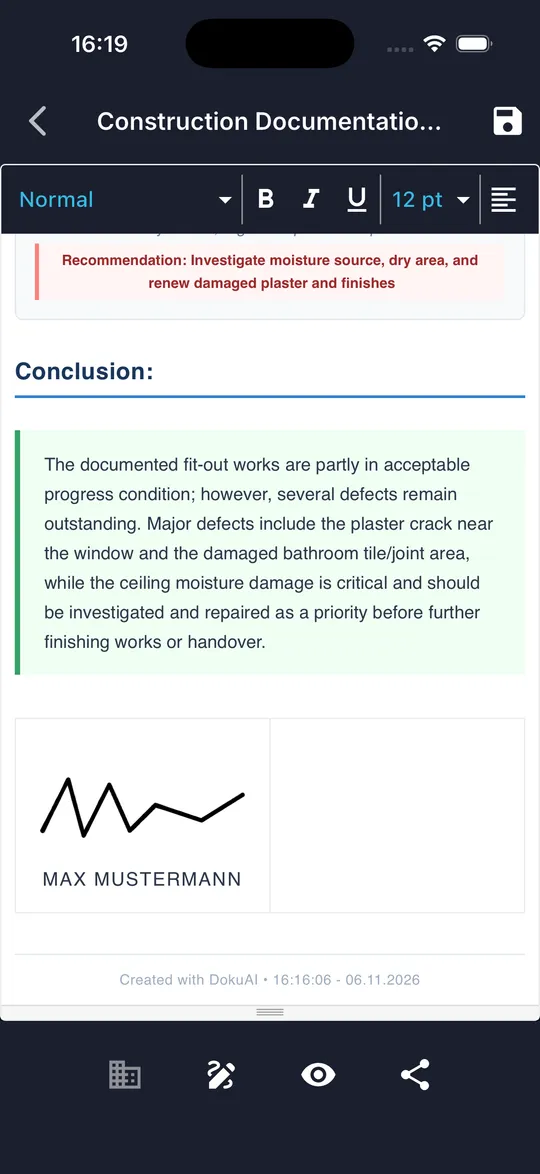
04 The signature with the name in capital letters appears at the end of the report.
-
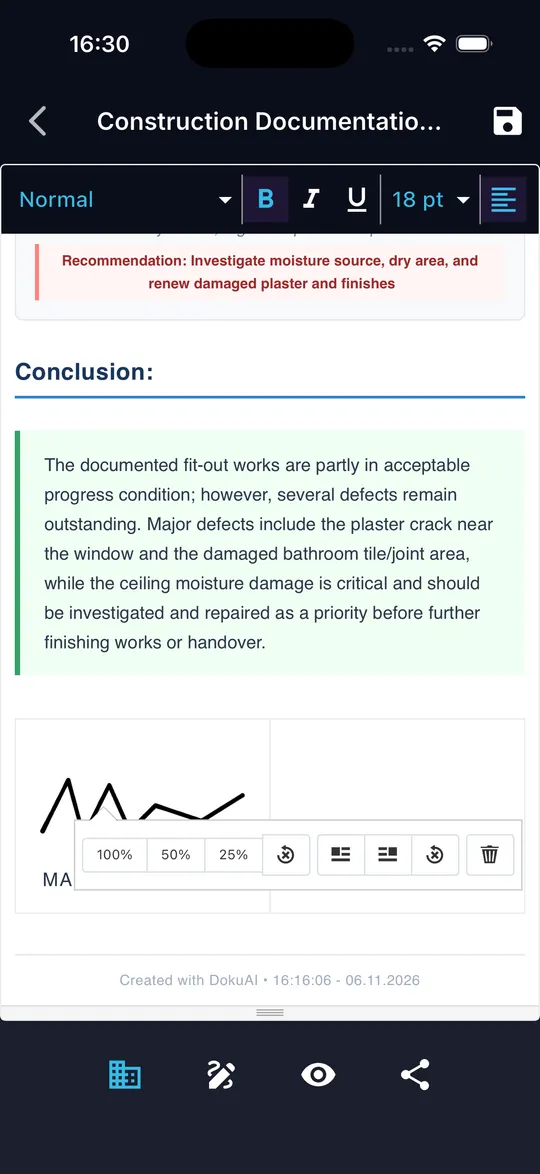
05 To remove a signature, tap it and tap the bin icon in the toolbar that appears.
Tips
- Repeat the steps for every further person. A report can hold several signatures.
- Sign after you have finished the text, so the signature covers the final version.
Common mistakes
- Please enter a name: the name field must not be empty.
- Please sign first: OK only works after a signature has been drawn.
Report and PDF
How do I preview the PDF and send it?
What you achieve
The client receives the report as a PDF by email, messenger or cloud.
Before you start
- A finished, opened report.
- Internet connection for creating the PDF.
Step by step
-
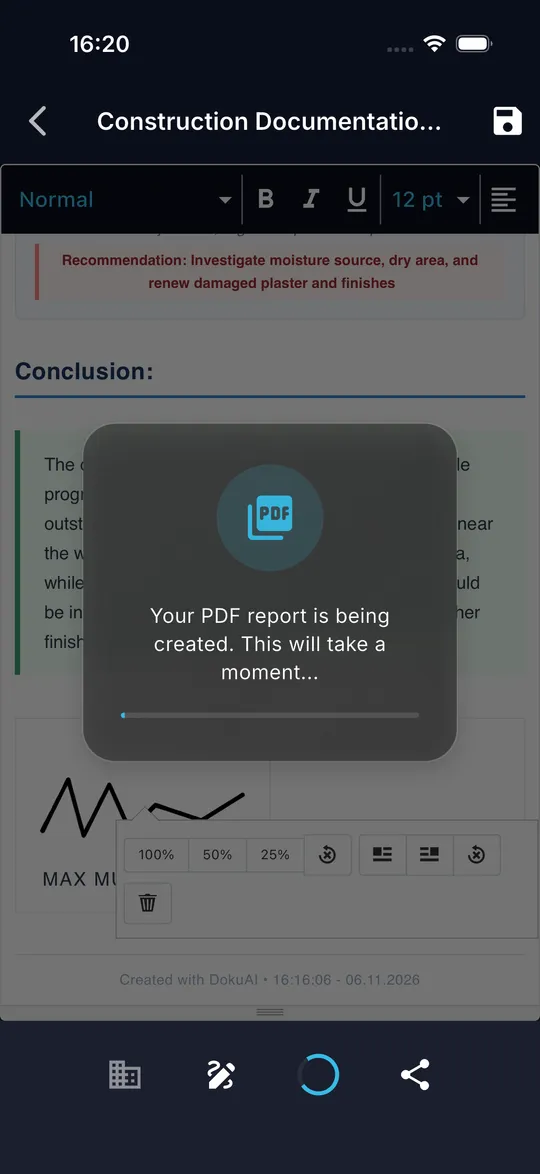
01 Tap the eye icon in the bottom bar. DokuAI saves the report and creates the PDF.
-
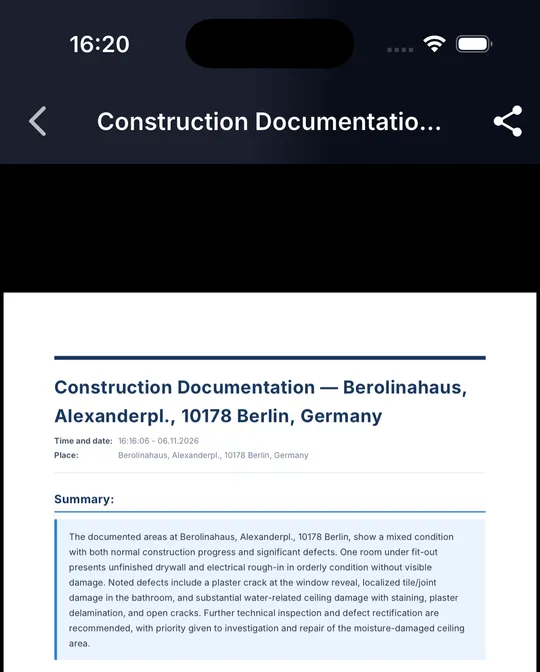
02 Scroll through the preview and check all pages.
-
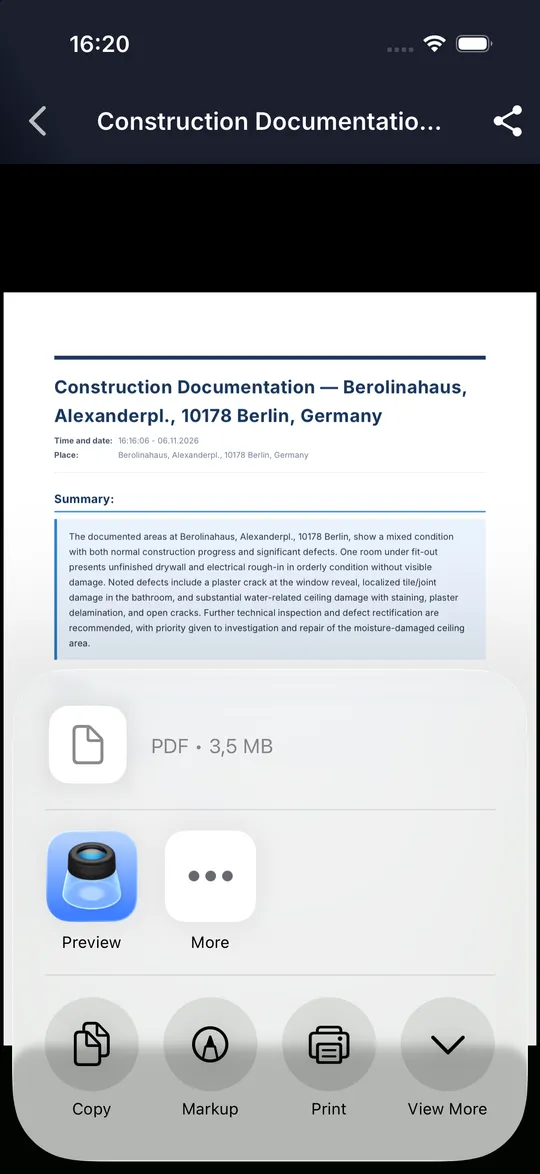
03 Tap the share icon at the top right of the preview, or the share icon in the bottom bar of the report.
-
04 Choose the target in the share menu, for example Mail, a messenger, Files or Print.
Tips
- After changes to the report, DokuAI creates the PDF again automatically.
- The PDF contains letterhead, photos with markings, measurements and signatures.
Common mistakes
- PDF could not be created. Please try again.: check the internet connection and try again.
Capture
How do I start a new report?
What you achieve
The list of recordings is emptied for the next site visit, without losing anything by accident.
Before you start
- DokuAI is open on the Start screen.
Step by step
-
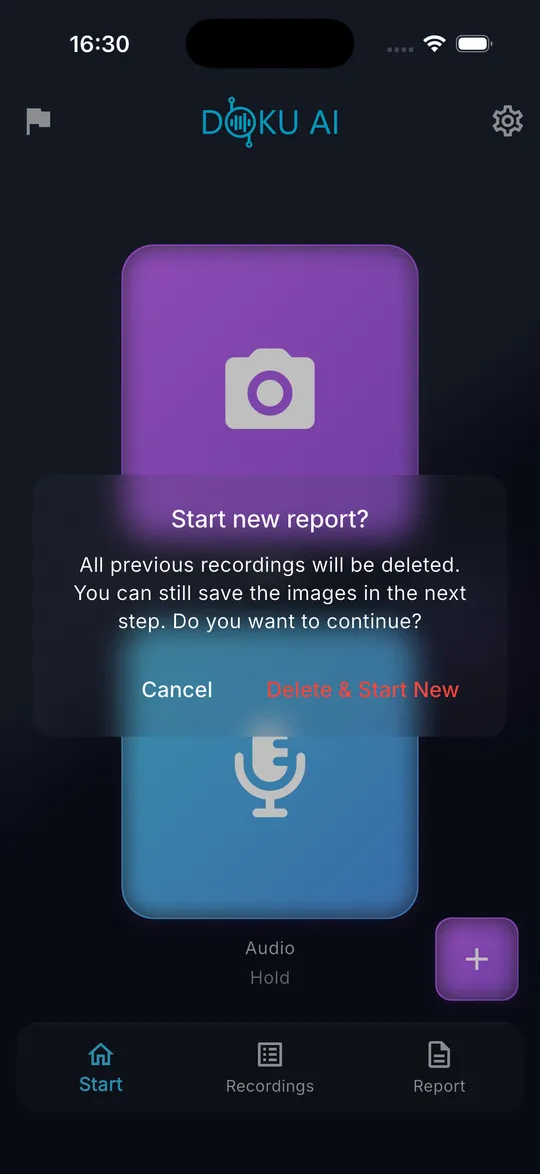
01 Tap the purple plus button at the bottom right of the Start screen.
-
02 Confirm Start new report? with Delete & Start New.
-
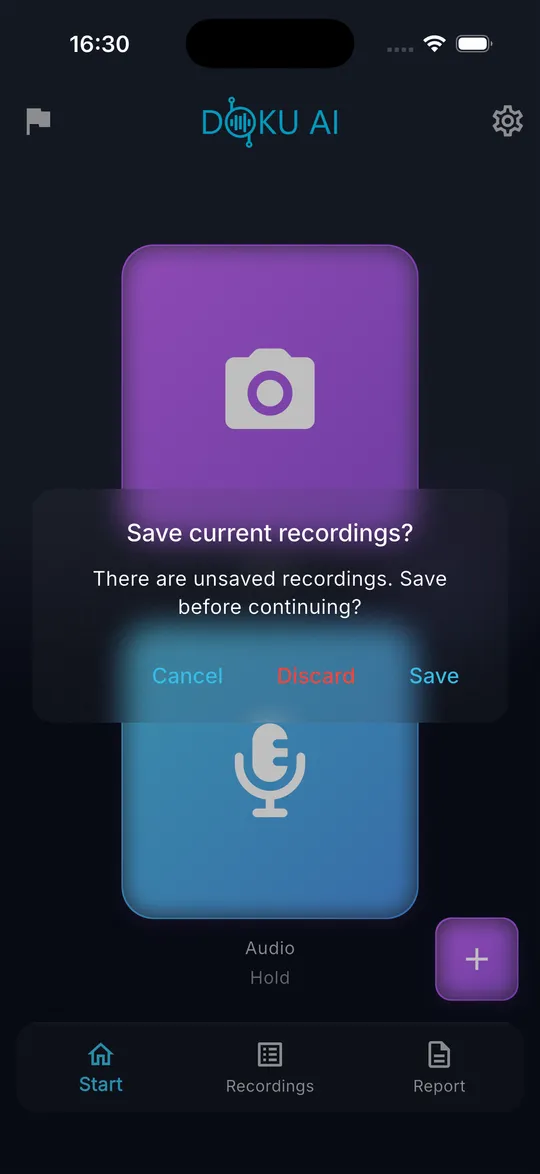
03 If the recordings are not saved in a project, DokuAI asks Save current recordings?. Choose Save, Discard or Cancel.
-
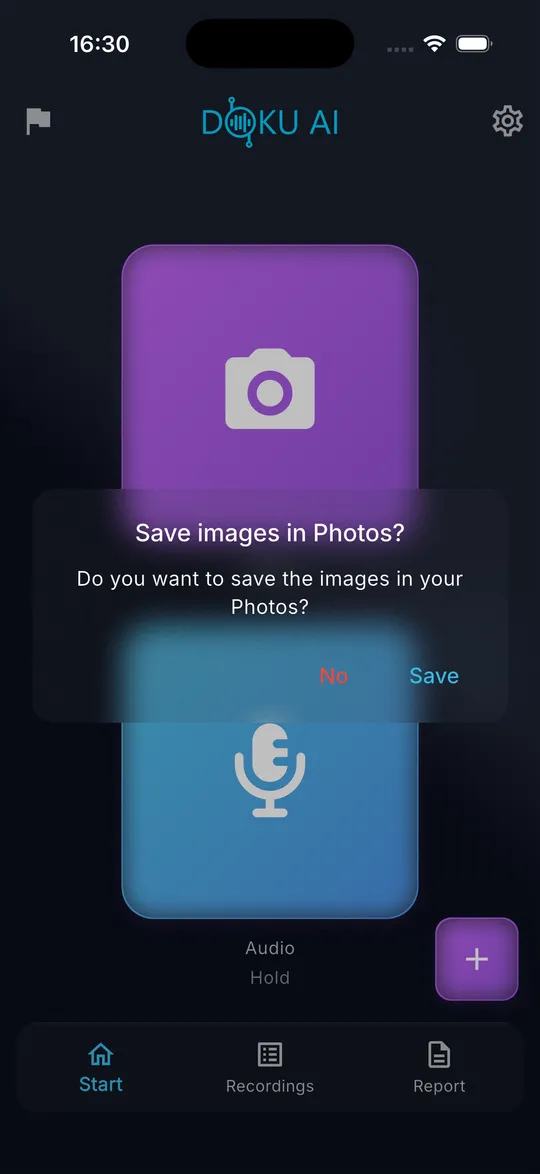
04 Decide whether the images should be saved in the Photos app, then tap Save or No.
-
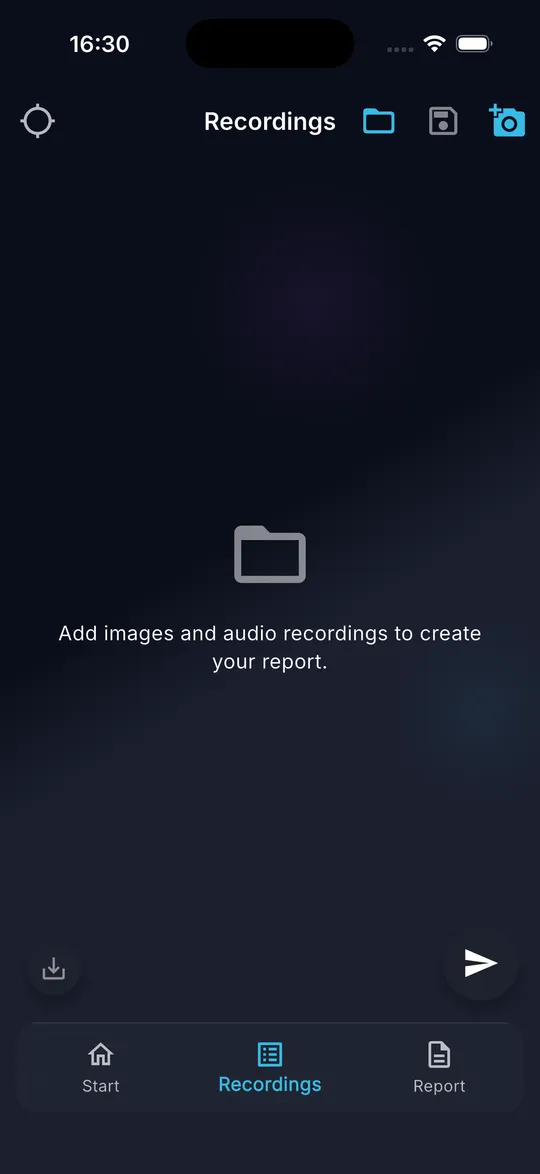
05 The Recordings tab is empty and the location is reset. You can start the next report.
Tips
- Reports you have already sent are not affected. They stay in the Report tab.
Common mistakes
- Discarding deletes the recordings permanently. Save them as a project if you might need them again.
Settings and subscription
How does the subscription work, and how do I restore it?
What you achieve
You open finished reports without limits and keep your subscription on a new phone.
Before you start
- An Apple ID or Google account with a payment method in the store.
Step by step
-
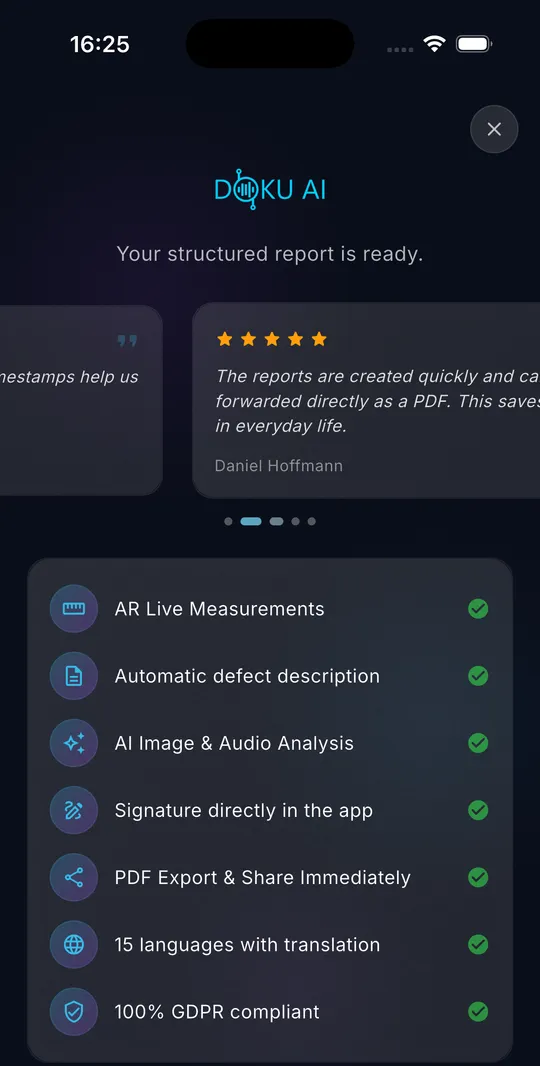
01 You can open your first finished report without a subscription. Afterwards, DokuAI shows the subscription screen when you open a report.
-
02 Choose a plan. The prices and any free trial are shown in the app and in the store of your country.
-
03 Confirm the purchase with the store. The report opens afterwards.
-
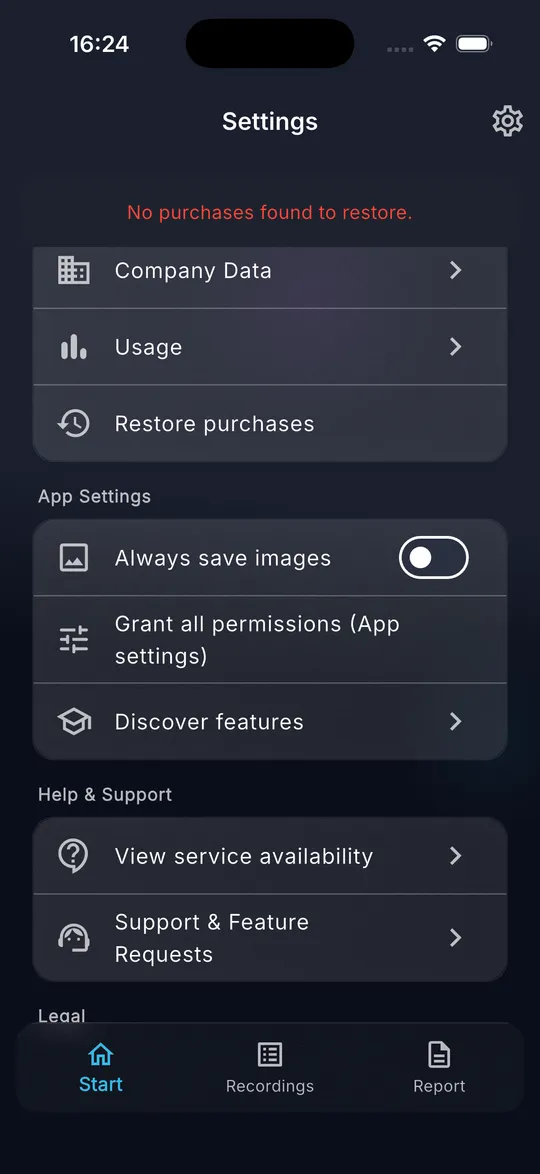
04 On a new phone or after reinstalling, open Settings and tap Restore purchases. DokuAI confirms the result.
Tips
- Use the same Apple ID or Google account that you used for the purchase.
- You manage or cancel the subscription in the store settings of your phone.
- With Code on the subscription screen you redeem a promo code.
Common mistakes
- No purchases found to restore.: the store account on this phone has no active DokuAI subscription. Check which account is signed in.
Settings and subscription
How do I check my monthly usage?
What you achieve
You see how many reports, photos and voice minutes are left this month.
Before you start
- DokuAI is set up.
Step by step
-
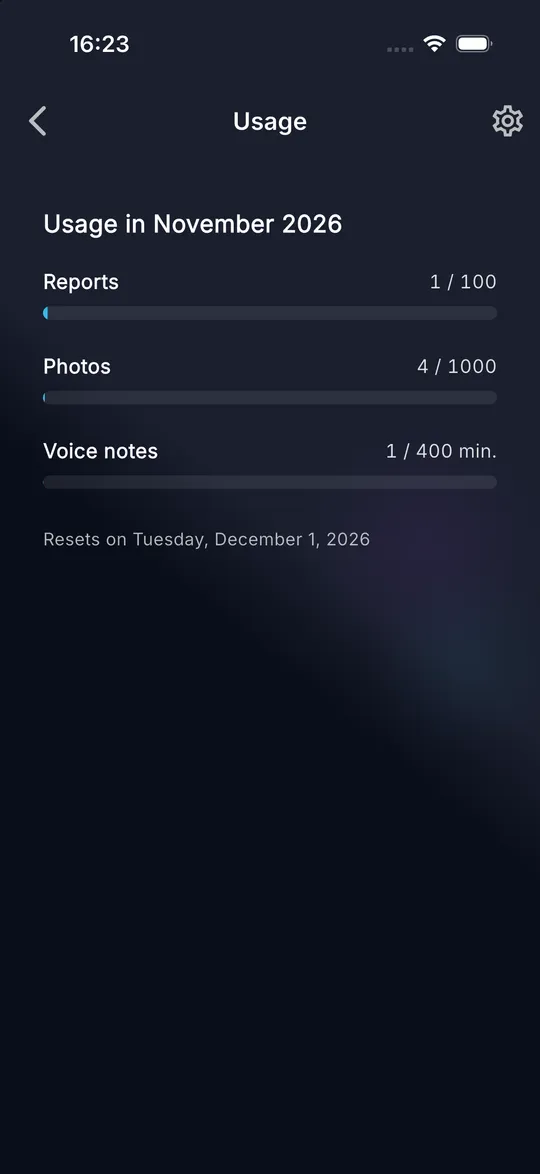
01 Open Settings and tap Usage.
-
02 Read the bars for Reports (100 per month), Photos (1,000 per month) and Voice notes (400 minutes per month). The date below shows when the counters reset.
Tips
- The counters reset on the first day of every calendar month.
- Only successful uploads are counted. A failed upload does not use your allowance.
Common mistakes
- A single report can contain at most 150 images, even if the monthly allowance is not used up.
Settings and subscription
Which settings does DokuAI have?
What you achieve
You know every option in the settings and find support quickly.
Before you start
- DokuAI is set up.
Step by step
-
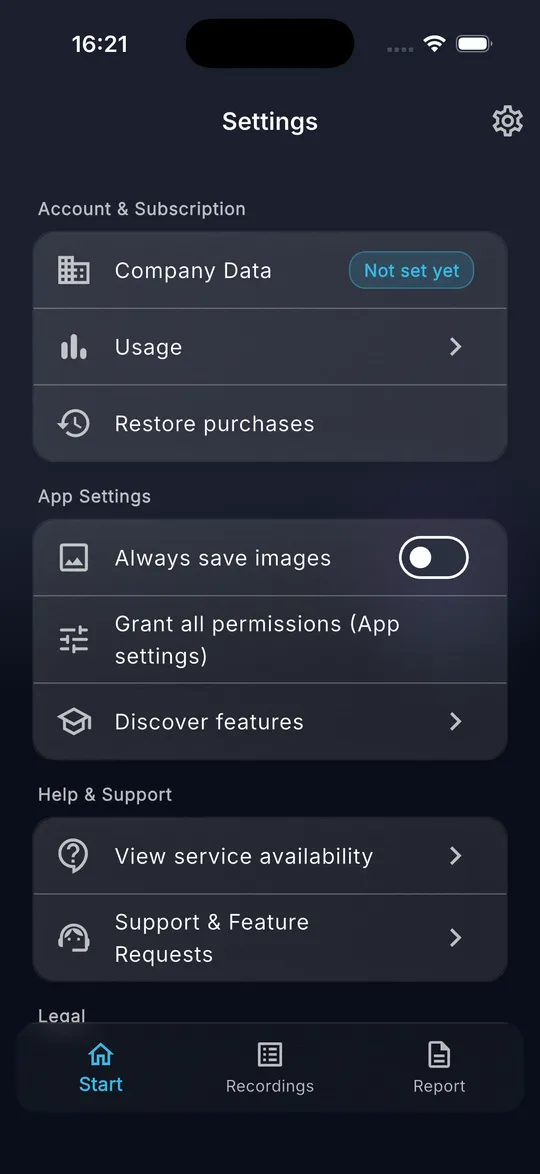
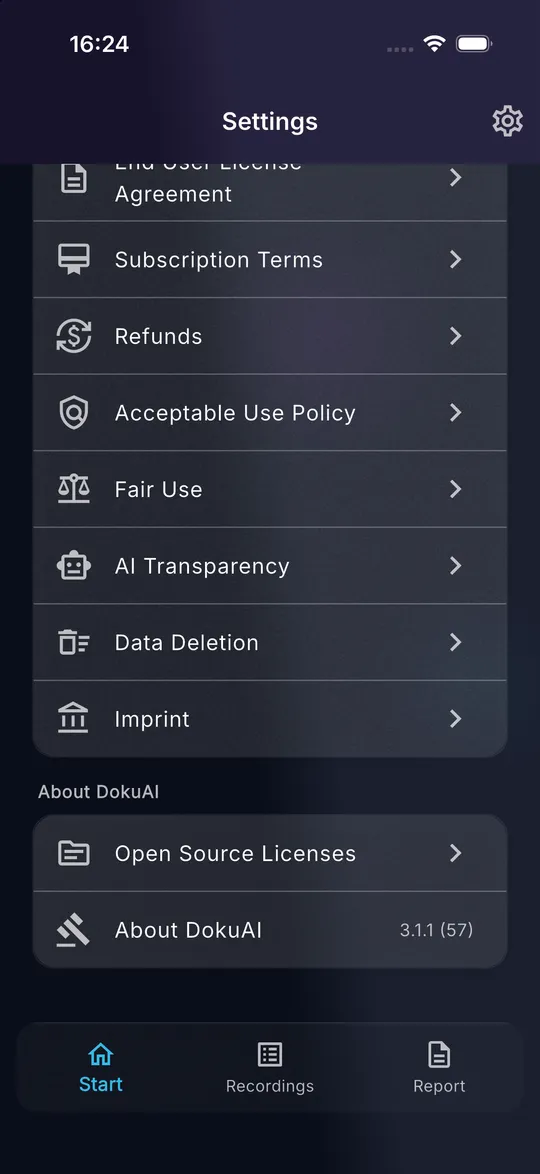
01 Tap the gear icon at the top right. Settings lists Account and Subscription, App Settings, Help and Support, Legal and About DokuAI.
-
02 Always save images stores every new photo in the photo library. Grant all permissions (App settings) opens the system settings of DokuAI.
-
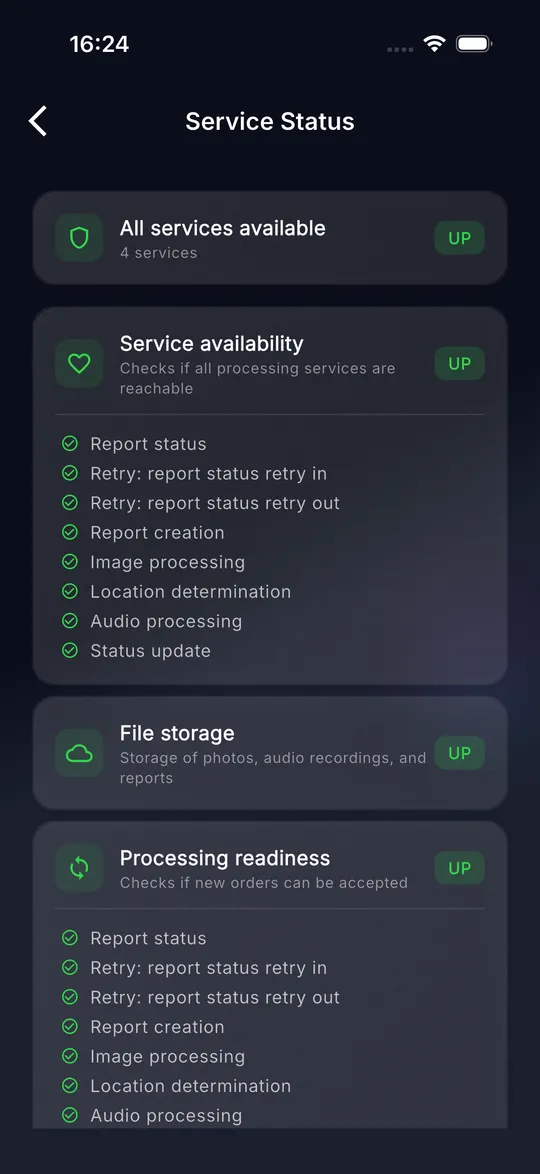
03 View service availability shows whether the DokuAI services are reachable.
-
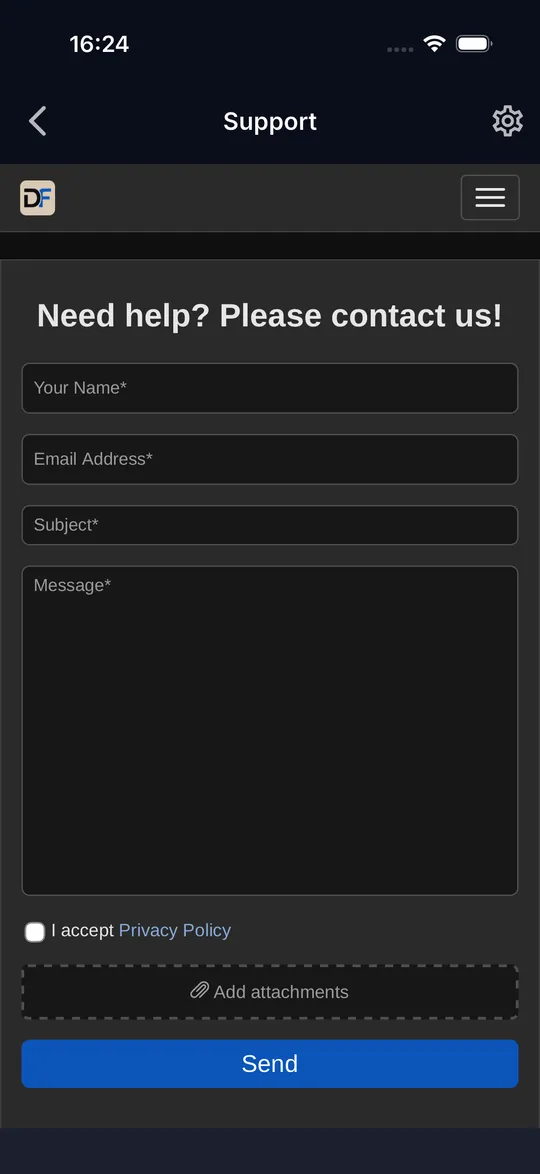
04 Support & Feature Requests opens the support form inside the app. Describe the problem and send it.
-
05 Under Legal you find privacy policy, terms, EULA, subscription terms, refunds, acceptable use, fair use, AI transparency, data deletion and imprint. About DokuAI shows the version.
Tips
- Mention the version from About DokuAI when you contact support.
Common mistakes
- The support form does not load: it needs an internet connection. Tap Try again once you are online.
Troubleshooting
Problems and quick fixes
Why can I not take a photo?
Either the camera permission is missing or the report already contains 150 images. Allow the camera under Settings, Grant all permissions, or send the report and start a new one.
Why is my report still processing?
Processing usually takes one to two minutes. Pull down the list in the Report tab to refresh it. If the status does not change, check Settings, View service availability. Your data is not lost when processing is delayed.
Can I use DokuAI without internet?
Yes for capturing: photos, voice notes, markings and projects work offline. Sending queues the report, and it is uploaded automatically once a connection is available. Address lookup, report generation and the PDF need a connection.
Why does the AR measurement not start?
AR needs a device with ARKit (iPhone, iPad) or Google Play Services for AR (Android), enough light and a surface with texture. Move the device slowly back and forth until the hint asks for the first point.
How do I move DokuAI to a new phone?
Install DokuAI on the new phone, sign in with the same Apple ID or Google account and tap Settings, Restore purchases. Reports and projects are stored on the old device, so export the PDFs and images you need before you switch.
How long are my reports kept?
Reports can be edited for 365 days. After that, the PDF stays available on the device. Report data on the server is deleted after 365 days at the latest, or earlier when you delete the report.
Which languages does DokuAI support?
The app and the reports are available in 15 languages: English, German, Spanish, French, Italian, Dutch, Polish, Portuguese, Turkish, Swedish, Danish, Norwegian, Finnish, Japanese and Korean. The app follows the language of the phone, the report language is set with the flag on the Start screen.
Where do I get personal help?
Open Settings, Support & Feature Requests in the app, or use the support form at support.apps.digitalfreedom.co.za.
Your next site visit, documented in minutes.
Download DokuAI and create your first report with photos, voice notes and signature.